MCP Server for Creating Splitit Plans
Splitit's MCP server provides tools that enable AI assistants and agents to create Splitit installment plans. It allows for complete checkout session lifecycle management including session creation, session updating, payment plan presentation and selection, and transaction confirmation or cancellation. Note that this tool is intended to help with creating Splitit plans, not managing them.
Endpoint
https://mcp.sandbox.splitit.com/mcp (sandbox)
Connecting to the Server
- Curl
- Claude Desktop
- Cline (VS Code Extension)
- Cursor
- Call as follows ("list available tools" method):
curl -X POST https://mcp.sandbox.splitit.com/mcp \
  -H "Content-Type: application/json" \
  -H "Accept: application/json, text/event-stream" \
  -H "Authorization: Bearer <TOKEN>" \  // or use Api-Key
  -d '{
    "jsonrpc": "2.0",
    "id": 1,
    "method": "tools/list"
  }'
1. Add the JSON below to your respective Claude Desktop configuration file, which you can find in the following locations:
{
  "mcpServers": {
    "splitit-checkout": {
      "url": "https://mcp.sandbox.splitit.com/mcp",
      "headers": {
        "Api-Key": "bXlfY2xpZW50Om15X3NlY4JldA=="  // or use bearer token
      }
    }
  }
}
1. Configure in Cline's MCP settings:
{
  "name": "Splitit Checkout",
  "url": "https://mcp.sandbox.splitit.com/mcp",
  "headers": {
    "Authorization": "Bearer YOUR_TOKEN_HERE" // or use Api-Key
  }
}
1. Go to Settings -> Cursor Settings -> Tools & MCP Servers -> Add Custom MCP or New MCP Server
2. Add the JSON below:
{
  "mcpServers": {
    "splitit-checkout": {
      "url": "https://mcp.sandbox.splitit.com/mcp",
      "transport": "sse",
      "headers": {
        "Api-Key": "bXlfY2xpZW50Om15X3NlY4JldA==" // or use bearer token
      }
    }
  }
}
Authentication
You authenticate to Splitit's MCP server by adding one of two headers:
- a bearer header token you fetch from Splitit's ID server via OAuth
- an API Key: a Base64-encoded string composed of your Splitit client_id and client_secret
- OAuth
- API Key
- Follow the instructions here to fetch a bearer token from the Splitit ID server. Attach it as a header to all of your MCP calls.
- In addition to the header, you will need to provide a Terminal Id (a.k.a. Terminal API Key) in your agent prompts, because various Splitit MCP tools require it. Find your Terminal Id in your Merchant Hub under Merchants Management-> Select Your Merchant-> Terminals.
Note:
- If you are unable to successfully access the MCP server, you may need additional scopes (permissions) added to your account by Splitit support, namely api.v3 and ext.mcp.server
- Go to your Merchant Hub, where you'll find three items necessary to call Splitit's MCP server:
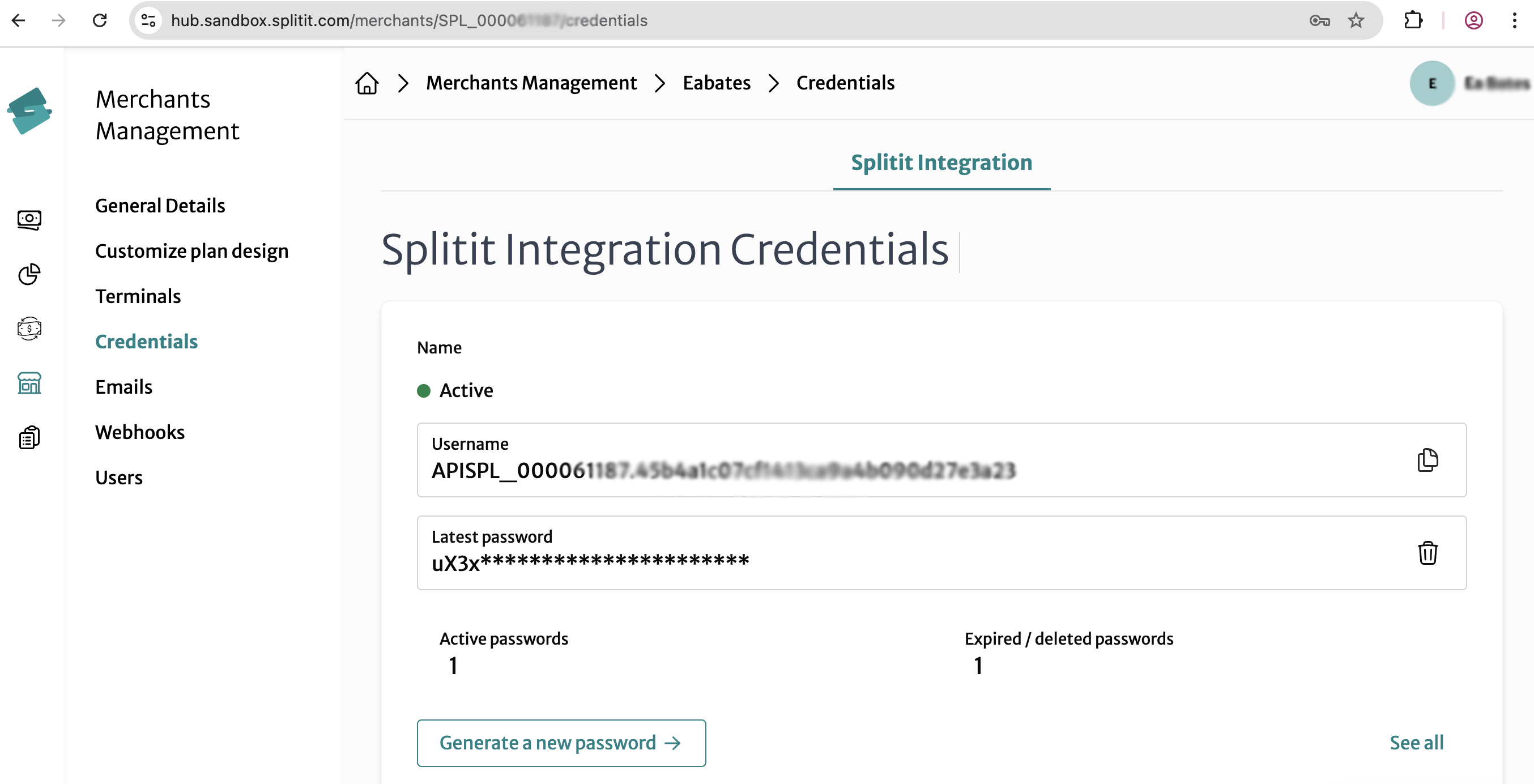
- An API Username, which you can find under Merchants Management-> Select Your Merchant-> Credentials. Copy the
Usernameparameter. - An API Password, which you can find under Merchants Management-> Select Your Merchant-> Credentials. Click Generate a new password.
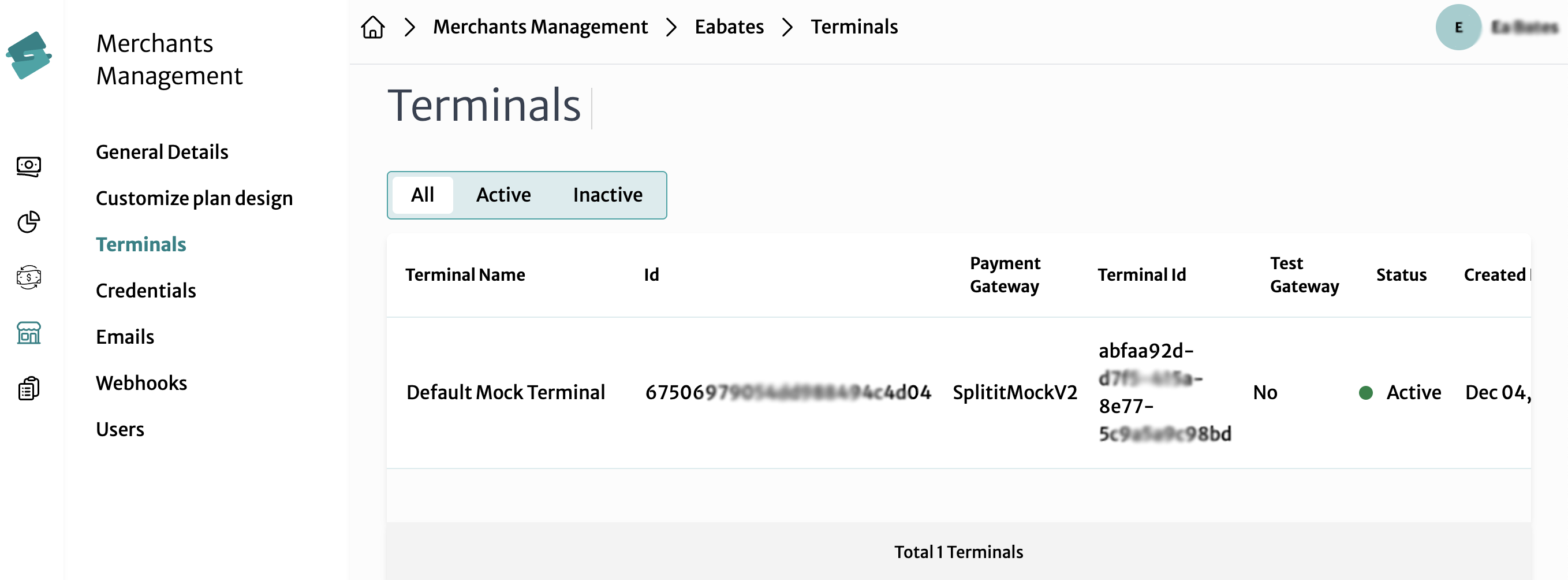
- A Terminal Id (a.k.a. Terminal API Key), which can be found under Merchants Management-> Select Your Merchant-> Terminals. Copy the
Terminal Idfor the terminal you'd like to use.
- Convert your API Username and API Password to base64 in your terminal:
echo -n "my_client:my_secret" | base64
(for example, echo -n APISPL_000051913.f1dba14dc12a462cbede4e0cb21774e4:sD3Hj1clozmScU0a8ZbAwWAMJO9Xz3PCpucAtWBqhMus0jen6u | base64)
-
You will need to add the output as a header named Api-Key to your MCP calls named, i.e.,
Api-Key: bXmfY2opXW50Om15X3NlY3JldA== -
Your third credential, Terminal Id (a.k.a. Terminal API Key), needs to be included in your agent prompts, because various Splitit MCP tools require it.
Notes:
- Include your Api-Key header in all calls
- If you are unable to use the MCP server, you may need additional scopes (permissions) added to your account by Splitit support, namely api.v3 and ext.mcp.server

Checkout Session Flow with Tools
- A session ID and a checkout link are fetched with
init_checkout_session - If something needs to be updated immediately or anytime before a plan has been finalized (e.g., amount or number of installments),
update_checkout_sessionis called - Shopper goes to the checkout link and enters their card, which is processed by Splitit externally
- Available offers based on the shopper's card and other factors are fetched using
get_checkout_session select_session_offersets the installment plan the shopper chooses- The purchase is finalized with
confirm_session— OR — The purchase is aborted withcancel_session
Session Statuses
| State | Description |
|---|---|
ReadyForPayment | Session created, awaiting card details |
InProgress | Card details submitted, offer can be selected |
Completed | Payment confirmed successfully |
Canceled | Session was cancelled |
[Init] → ReadyForPayment
            ↓ (card entered via CardDetailsLink)
         InProgress
            ↓ (offer selected + confirm called)
         Completed
            ↓ (or cancel called at any point before Completed)
         Canceled
Important things to note:
- Never fabricate IDs, rather always use values returned by the API
- Never collect card details directly, rather you should always redirect shoppers to the
CardDetailsLink
Tool Definitions
init_checkout_session
Create a new checkout session by providing amount, billing, and shopper details. Use this as the FIRST step in the flow to initialize a session.
Returns: Full session object including Id, Status, Offers, and CardDetailsLink.
Required session status: none, creates a new session
- Request Objects
- Curl Request
- Response Objects and Example
CreateSessionRequest
| Field | Type | Required | Description |
|---|---|---|---|
Amount | Amount | No | The total purchase amount |
BillingAddress | BillingAddress | No | Shopper's billing address |
Shopper | Shopper | No | Shopper details (email, name, etc.) |
TerminalApiKey | string | No | Merchant terminal API key (added to agent prompts, different from Api-Key in header; See Authentication.) |
Nested Objects
Amount
Represents a monetary value.
| Field | Type | Required | Description |
|---|---|---|---|
Value | number | string | Yes | The numeric amount (e.g. 199.99 or "199.99") |
CurrencyCode | string | null | No | ISO 4217 currency code (e.g. "USD", "EUR") |
BillingAddress
The shopper's billing address.
| Field | Type | Required | Description |
|---|---|---|---|
AddressLine | string | Yes | Street address line 1 |
AddressLine2 | string | null | No | Street address line 2 (apt, suite, etc.) |
City | string | Yes | City |
State | string | Yes | State or province |
Zip | string | Yes | Postal / ZIP code |
Country | string | Yes | Country |
⚠️ All fields are marked as PII (Personally Identifiable Information).
Shopper
Information about the person making the purchase.
| Field | Type | Required | Description |
|---|---|---|---|
Email | string | Yes | Shopper's email address |
FullName | string | null | No | Shopper's full name |
Phone | string | null | No | Phone number |
PhoneNumber | string | null | No | Alternate phone number field |
ExternalId | string | null | No | Your internal shopper/customer ID |
Culture | string | No | Locale/culture code (default: "en-US") |
⚠️ All fields are marked as PII (Personally Identifiable Information).
curl -X POST https://mcp.sandbox.splitit.com/mcp \
  -H "Api-Key: QVBJU1BMXzAwMDA1MjcxMy5lOWRiYTIzY2MyMmE0NjJjYmVkZTRlMGNiMjE3NzRlNDpzRDJIajFib256bVVjVTBhOFpiQXdXQU1KTzlYejNQQ3B1Y0F0V0JxaE11czBqZW42dQ==" \
  -H "Content-Type: application/json" \
  -H "Accept: application/json, text/event-stream" \
  -d '{
    "jsonrpc": "2.0",
    "id": 2,
    "method": "tools/call",
    "params": {
      "name": "init_checkout_session",
      "arguments": {
        "create_session_request": {
          "Amount": {
            "Value": 10000,
            "Currency": "USD"
          },
          "BillingAddress": {
            "AddressLine": "123 Main St",
            "City": "New York",
            "State": "NY",
            "Zip": "10001",
            "Country": "US"
          },
          "Shopper": {
            "Email": "customer@example.com",
            "FirstName": "John",
            "LastName": "Doe",
            "Culture": "en-US"
          }
        }
      }
    }
  }'
SessionResponse
(Also returned by get_checkout_session, cancel_session, and confirm_session).
| Field | Type | Description |
|---|---|---|
SessionId | string | The unique session identifier (use this for all subsequent calls) |
Id | string | null | Internal ID (may be null) |
TerminalApiKey | string | null | Terminal API key (null in responses) |
InstallmentPlanNumber | string | Assigned installment plan number (empty until confirmed) |
Status | string | Current session state — see Session Statuses above |
DateCreated | string | null | ISO 8601 creation timestamp (may be null) |
ModifiedDateUtc | string | ISO 8601 last-modified timestamp |
Amount | Amount | The session amount and currency |
Offers | Offer[] | Array of available installment offers (populated after card entry) |
OfferId | string | null | ID of the offer selected by the shopper (null until selected) |
Shopper | Shopper | Shopper details as stored on the session |
BillingAddress | BillingAddress | Billing address as stored on the session |
CardDetailsLink | string | URL to redirect the shopper to for secure card entry |
Nested Object
Offer
Each item in the Offers array on a SessionResponse. Populated after the shopper has entered their card details.
| Field | Type | Description |
|---|---|---|
Id | string | Unique offer ID — pass this to select_session_offer |
NumberOfInstallments | number | How many installments the plan splits into |
Description | string | Human-readable description of the plan |
Interval | string | Payment interval (e.g. "Monthly", "BiWeekly") |
InstallmentAmount | Amount | Amount per installment |
FirstInstallmentAmount | Amount | Amount of the first installment (may differ) |
⚠️
Offersis an empty array ([]) until the shopper has completed card entry via theCardDetailsLink.
Example:
{
  "Id": null,
  "SessionId": "0de3535d-0a14-47d4-b31d-1a5b63280ee2",
  "TerminalApiKey": null,
  "InstallmentPlanNumber": "",
  "Status": "ReadyForPayment",
  "DateCreated": null,
  "ModifiedDateUtc": "2026-02-19T08:31:51.219000Z",
  "Amount": { "Value": "100.0", "CurrencyCode": "USD" },
  "Offers": [],
  "OfferId": null,
  "Shopper": {
    "FullName": "Test User",
    "Email": "test@example.com",
    "Phone": null,
    "PhoneNumber": null,
    "Culture": "en-US",
    "ExternalId": null
  },
  "BillingAddress": {
    "AddressLine": "123 Test St",
    "AddressLine2": null,
    "City": "New York",
    "Country": "US",
    "Zip": "10001",
    "State": "NY"
  },
  "CardDetailsLink": "https://pay.sandbox.splitit.com/mcp/card-details/0de3535d-0a14-47d4-b31d-1a5b63280ee2"
}
update_checkout_session
Updates an existing checkout session's Amount, BillingAddress and/or Shopper. Need to have a session ID and session must have ReadyForPayment status. All fields are optional; any provided field overwrites the existing value and an explicit null clears the value.
Required session status: ReadyForPayment
- Parameters
- Request Objects
- Curl Request
- Response Object
| Parameter | Type | Required | Description |
|---|---|---|---|
session_id | string | Yes | The session ID to update |
update_session_request | UpdateSessionRequest | Yes | Fields to update |
UpdateSessionRequest
| Field | Type | Required | Description |
|---|---|---|---|
Amount | Amount | null | No | Updated amount (null clears it) |
BillingAddress | BillingAddress | null | No | Updated billing address |
Shopper | Shopper | null | No | Updated shopper details |
Nested Objects
Amount
Represents a monetary value.
| Field | Type | Required | Description |
|---|---|---|---|
Value | number | string | Yes | The numeric amount (e.g. 199.99 or "199.99") |
CurrencyCode | string | null | No | ISO 4217 currency code (e.g. "USD", "EUR") |
BillingAddress
The shopper's billing address.
| Field | Type | Required | Description |
|---|---|---|---|
AddressLine | string | Yes | Street address line 1 |
AddressLine2 | string | null | No | Street address line 2 (apt, suite, etc.) |
City | string | Yes | City |
State | string | Yes | State or province |
Zip | string | Yes | Postal / ZIP code |
Country | string | Yes | Country |
⚠️ All fields are marked as PII (Personally Identifiable Information).
Shopper
Information about the person making the purchase.
| Field | Type | Required | Description |
|---|---|---|---|
Email | string | Yes | Shopper's email address |
FullName | string | null | No | Shopper's full name |
Phone | string | null | No | Phone number |
PhoneNumber | string | null | No | Alternate phone number field |
ExternalId | string | null | No | Your internal shopper/customer ID |
Culture | string | No | Locale/culture code (default: "en-US") |
⚠️ All fields are marked as PII (Personally Identifiable Information).
curl -X POST https://mcp.sandbox.splitit.com/mcp \
  -H "Api-Key: QVBJU1BMXzAwMDA1MjcxMy5lOWRiYTIzY2MyMmE0NjJjYmVkZTRlMGNiMjE3NzRlNDpzRDJIajFib256bVVjVTBhOFpiQXdXQU1KTzlYejNQQ3B1Y0F0V0JxaE11czBqZW42dQ==" \
  -H "Content-Type: application/json" \
  -H "Accept: application/json, text/event-stream" \
  -d '{
    "jsonrpc": "2.0",
    "id": 7,
    "method": "tools/call",
    "params": {
      "name": "update_checkout_session",
      "arguments": {
        "session_id": "a35c4a73-3a37-4d7f-8b84-500317df1284",
        "update_session_request": {
          "Amount": {
            "Value": 15000,
            "Currency": "USD"
          },
          "BillingAddress": {
            "AddressLine": "456 Oak Avenue",
            "City": "Los Angeles",
            "State": "CA",
            "Zip": "90001",
            "Country": "US"
          },
          "Shopper": {
            "Email": "updated@example.com",
            "FirstName": "Jane",
            "LastName": "Smith",
            "Culture": "en-US"
          }
        }
      }
    }
  }'
UpdateSessionResponse
Returned exclusively by update_checkout_session. Has a different shape from the main session response.
| Field | Type | Description |
|---|---|---|
IsSuccess | boolean | Whether the update was applied successfully |
StatusCode | number | HTTP-style status code (e.g. 200) |
TraceId | string | Trace ID for debugging/support purposes |
Errors | object | null | Error details if the update failed, otherwise null |
Example:
{
  "Errors": null,
  "StatusCode": 200,
  "TraceId": "Vz4dtyHmTDaQc20R2sJMDwAA#KHnAAA",
  "IsSuccess": true
}
get_checkout_session
Fetches the current state of a checkout session by its session ID. Use this tool to inspect status, offers, selected offer, and shopper/billing/amount data.
Required session status: any
- Parameters
- Curl Request
- Response Objects and Example
Parameters:
| Parameter | Type | Required | Description |
|---|---|---|---|
session_id | string | Yes | The session ID to retrieve |
Curl:
curl -X POST https://mcp.sandbox.splitit.com/mcp \
  -H "Api-Key: QVBJU1BMXzAwMDA1MjcxMy5lOWRiYTIzY2MyMmE0NjJjYmVkZTRlMGNiMjE3NzRlNDpzRDJIajFib256bVVjVTBhOFpiQXdXQU1KTzlYejNQQ3B1Y0F0V0JxaE11czBqZW42dQ==" \
  -H "Content-Type: application/json" \
  -H "Accept: application/json, text/event-stream" \
  -d '{
    "jsonrpc": "2.0",
    "id": 3,
    "method": "tools/call",
    "params": {
      "name": "get_checkout_session",
      "arguments": {
        "session_id": "04a06939-d513-4ff4-a214-44ab24fde73c"
      }
    }
  }'
SessionResponse
(Also returned by init_checkout_session, cancel_session, and confirm_session)
| Field | Type | Description |
|---|---|---|
SessionId | string | The unique session identifier (use this for all subsequent calls) |
Id | string | null | Internal ID (may be null) |
TerminalApiKey | string | null | Terminal API key (null in responses) |
InstallmentPlanNumber | string | Assigned installment plan number (empty until confirmed) |
Status | string | Current session state — see Session Statuses above |
DateCreated | string | null | ISO 8601 creation timestamp (may be null) |
ModifiedDateUtc | string | ISO 8601 last-modified timestamp |
Amount | Amount | The session amount and currency |
Offers | Offer[] | Array of available installment offers (populated after card entry) |
OfferId | string | null | ID of the offer selected by the shopper (null until selected) |
Shopper | Shopper | Shopper details as stored on the session |
BillingAddress | BillingAddress | Billing address as stored on the session |
CardDetailsLink | string | URL to redirect the shopper to for secure card entry |
Nested Object
Offer
Each item in the Offers array on a SessionResponse. Populated after the shopper has entered their card details.
| Field | Type | Description |
|---|---|---|
Id | string | Unique offer ID — pass this to select_session_offer |
NumberOfInstallments | number | How many installments the plan splits into |
Description | string | Human-readable description of the plan |
Interval | string | Payment interval (e.g. "Monthly", "BiWeekly") |
InstallmentAmount | Amount | Amount per installment |
FirstInstallmentAmount | Amount | Amount of the first installment (may differ) |
⚠️
Offersis an empty array ([]) until the shopper has completed card entry via theCardDetailsLink.
Example:
{
  "Id": null,
  "SessionId": "0de3535d-0a14-47d4-b31d-1a5b63280ee2",
  "TerminalApiKey": null,
  "InstallmentPlanNumber": "",
  "Status": "ReadyForPayment",
  "DateCreated": null,
  "ModifiedDateUtc": "2026-02-19T08:31:51.219000Z",
  "Amount": { "Value": "100.0", "CurrencyCode": "USD" },
  "Offers": [],
  "OfferId": null,
  "Shopper": {
    "FullName": "Test User",
    "Email": "test@example.com",
    "Phone": null,
    "PhoneNumber": null,
    "Culture": "en-US",
    "ExternalId": null
  },
  "BillingAddress": {
    "AddressLine": "123 Test St",
    "AddressLine2": null,
    "City": "New York",
    "Country": "US",
    "Zip": "10001",
    "State": "NY"
  },
  "CardDetailsLink": "https://pay.sandbox.splitit.com/mcp/card-details/0de3535d-0a14-47d4-b31d-1a5b63280ee2"
}
select_session_offer
Select a specific offer for a checkout session. The offerId must exist in the session's Offers collection and session must have ReadyForPayment or InProgress statuses. Use when the session already has a list of offers and you want to set the offer that is selected for the session.
Required session status: ReadyForPayment or InProgress
- Parameters
- Curl Request
- Response Objects and Example
| Parameter | Type | Required | Description |
|---|---|---|---|
session_id | string | Yes | The session ID |
offer_id | string | Yes | The offer ID chosen by the shopper |
curl -X POST https://mcp.sandbox.splitit.com/mcp \
  -H "Api-Key: QVBJU1BMXzAwMDA1MjcxMy5lOWRiYTIzY2MyMmE0NjJjYmVkZTRlMGNiMjE3NzRlNDpzRDJIajFib256bVVjVTBhOFpiQXdXQU1KTzlYejNQQ3B1Y0F0V0JxaE11czBqZW42dQ==" \
  -H "Content-Type: application/json" \
  -H "Accept: application/json, text/event-stream" \
  -d '{
    "jsonrpc": "2.0",
    "id": 6,
    "method": "tools/call",
    "params": {
      "name": "select_session_offer",
      "arguments": {
        "session_id": "9f0d8bc3-ed0e-4b38-8631-f33f736bd12b",
        "offer_id": "YOUR_OFFER_ID_HERE"
      }
    }
  }'
SessionResponse
| Field | Type | Description |
|---|---|---|
InstallmentPlanNumber | string | Assigned installment plan number |
TerminalApiKey | string | Terminal API key (null in responses) |
SessionId | string | The unique session identifier |
Status | string | Current session state — see Session Statuses above |
DateCreated | string (date-time) | ISO 8601 creation timestamp (may be null) |
ModifiedDateUtc | string (date-time) | ISO 8601 last-modified timestamp |
Amount | Amount | The session amount and currency |
OfferId | string | Alternate offer ID field (may be null) |
Shopper | Shopper | Shopper details as stored on the session |
BillingAddress | BillingAddress | Billing address as stored on the session |
Offers | Offer[] | Array of available installment offers (populated after card entry) |
CardDetailsLink | string | URL to redirect the shopper to for secure card entry |
Nested Objects
Amount
Represents a monetary value.
| Field | Type | Required | Description |
|---|---|---|---|
Value | number | string | Yes | The numeric amount (e.g. 199.99 or "199.99") |
CurrencyCode | string | null | No | ISO 4217 currency code (e.g. "USD", "EUR") |
Shopper
Information about the person making the purchase.
| Field | Type | Required | Description |
|---|---|---|---|
FirstName | string | null | No | First name |
LastName | string | null | No | Last name |
Email | string | Yes | Shopper's email address |
PhoneNumber | string | null | No | Phone number field |
Culture | string | No | Locale/culture code (default: "en-US") |
ExternalId | string | null | No | Your internal shopper/customer ID |
FullName | string | null | No | Shopper's full name |
⚠️ All fields are marked as PII (Personally Identifiable Information).
BillingAddress
The shopper's billing address.
| Field | Type | Required | Description |
|---|---|---|---|
AddressLine | string | Yes | Street address line 1 |
AddressLine2 | string | null | No | Street address line 2 (apt, suite, etc.) |
City | string | Yes | City |
Country | string | Yes | Country |
State | string | Yes | State or province |
Zip | string | Yes | Postal / ZIP code |
⚠️ All fields are marked as PII (Personally Identifiable Information).
Offers
| Field | Type | Description |
|---|---|---|
OfferId | string | Id from the offer selected |
Description | string | Human-readable description of the plan |
Interval | string | how often installments are taken |
NumberOfInstallments | number | number of installments in plan |
Example:
{
  "InstallmentPlanNumber": "string",
  "TerminalApiKey": "string",
  "SessionId": "0de3535d-0a14-47d4-b31d-1a5b63280ee2",
  "Status": "NotReadyForPayment",
  "DateCreated": "2026-03-10T14:38:45.346Z",
  "ModifiedDateUtc": "2026-03-10T14:38:45.346Z",
  "Amount": {
    "Value": 100.0,
    "CurrencyCode": "string"
  },
  "OfferId": "string",
  "Shopper": {
    "FirstName": "string",
    "LastName": "string",
    "Email": "test@example.com",
    "PhoneNumber": null,
    "Culture": "en-US",
    "ExternalId": null,
    "FullName": "Test User",
  },
  "BillingAddress": {
    "AddressLine": "123 Test St",
    "AddressLine2": null,
    "City": "New York",
    "Country": "US",
    "State": "NY",
    "Zip": "10001",
  },
  "Offers": [
    {
      "OfferId": "string",
      "Description": "string",
      "Interval": "Monthly",
      "NumberOfInstallments": 0
    }
  ],
  "CardDetailsLink": "https://pay.sandbox.splitit.com/mcp/card-details/0de3535d-0a14-47d4-b31d-1a5b63280ee2"
}
confirm_session
Confirm (finalize) a checkout session. Use only after a payment method has been set and an offer has been selected. Session must be InProgress and must already have a selected OfferId, CardHash and TerminalApiKey (this was provided via LLM prompt rather than as a header; see Authentication). Use when shopper has selected an offer,
a payment method has already been saved for this session and you are ready to finalize/confirm the checkout.
Required session status: InProgress (requires payment method)
- Parameters
- Curl Request
- Response Objects and Example
| Parameter | Type | Required | Description |
|---|---|---|---|
session_id | string | Yes | The session ID to confirm |
curl -X POST https://mcp.sandbox.splitit.com/mcp \
  -H "Api-Key: QVBJU1BMXzAwMDA1MjcxMy5lOWRiYTIzY2MyMmE0NjJjYmVkZTRlMGNiMjE3NzRlNDpzRDJIajFib256bVVjVTBhOFpiQXdXQU1KTzlYejNQQ3B1Y0F0V0JxaE11czBqZW42dQ==" \
  -H "Content-Type: application/json" \
  -H "Accept: application/json, text/event-stream" \
  -d '{
    "jsonrpc": "2.0",
    "id": 8,
    "method": "tools/call",
    "params": {
      "name": "confirm_session",
      "arguments": {
        "session_id": "a35c4a73-3a37-4d7f-8b84-500317df1284"
      }
    }
  }'
SessionResponse
(Also returned by init_checkout_session, get_checkout_session and cancel_session)
| Field | Type | Description |
|---|---|---|
SessionId | string | The unique session identifier (use this for all subsequent calls) |
Id | string | null | Internal ID (may be null) |
TerminalApiKey | string | null | Terminal API key (null in responses) |
InstallmentPlanNumber | string | Assigned installment plan number (empty until confirmed) |
Status | string | Current session state — see Session Statuses above |
DateCreated | string | null | ISO 8601 creation timestamp (may be null) |
ModifiedDateUtc | string | ISO 8601 last-modified timestamp |
Amount | Amount | The session amount and currency |
Offers | Offer[] | Array of available installment offers (populated after card entry) |
OfferId | string | null | ID of the offer selected by the shopper (null until selected) |
Shopper | Shopper | Shopper details as stored on the session |
BillingAddress | BillingAddress | Billing address as stored on the session |
CardDetailsLink | string | URL to redirect the shopper to for secure card entry |
Nested Object
Offer
Each item in the Offers array on a SessionResponse. Populated after the shopper has entered their card details.
| Field | Type | Description |
|---|---|---|
Id | string | Unique offer ID — pass this to select_session_offer |
NumberOfInstallments | number | How many installments the plan splits into |
Description | string | Human-readable description of the plan |
Interval | string | Payment interval (e.g. "Monthly", "BiWeekly") |
InstallmentAmount | Amount | Amount per installment |
FirstInstallmentAmount | Amount | Amount of the first installment (may differ) |
⚠️
Offersis an empty array ([]) until the shopper has completed card entry via theCardDetailsLink.
Example:
{
  "Id": null,
  "SessionId": "0de3535d-0a14-47d4-b31d-1a5b63280ee2",
  "TerminalApiKey": null,
  "InstallmentPlanNumber": "",
  "Status": "ReadyForPayment",
  "DateCreated": null,
  "ModifiedDateUtc": "2026-02-19T08:31:51.219000Z",
  "Amount": { "Value": "100.0", "CurrencyCode": "USD" },
  "Offers": [],
  "OfferId": null,
  "Shopper": {
    "FullName": "Test User",
    "Email": "test@example.com",
    "Phone": null,
    "PhoneNumber": null,
    "Culture": "en-US",
    "ExternalId": null
  },
  "BillingAddress": {
    "AddressLine": "123 Test St",
    "AddressLine2": null,
    "City": "New York",
    "Country": "US",
    "Zip": "10001",
    "State": "NY"
  },
  "CardDetailsLink": "https://pay.sandbox.splitit.com/mcp/card-details/0de3535d-0a14-47d4-b31d-1a5b63280ee2"
}
cancel_session
Cancels an existing checkout session by session ID. Can be called with any session status except Completed. If the session is already cancelled, returns the current state without changing it. Use when the shopper abandons the flow or you need to stop the checkout and the session is not yet completed. Note that cancel_session is idempotent for already-canceled sessions.
Required session status: Any status except Completed
- Parameters
- Curl Request
- Response Objects and Example
Parameters:
| Parameter | Type | Required | Description |
|---|---|---|---|
session_id | string | Yes | The session ID to cancel |
Curl:
curl -X POST https://mcp.sandbox.splitit.com/mcp \
  -H "Api-Key: QVBJU1BMXzAwMDA1MjcxMy5lOWRiYTIzY2MyMmE0NjJjYmVkZTRlMGNiMjE3NzRlNDpzRDJIajFib256bVVjVTBhOFpiQXdXQU1KTzlYejNQQ3B1Y0F0V0JxaE11czBqZW42dQ==" \
  -H "Content-Type: application/json" \
  -H "Accept: application/json, text/event-stream" \
  -d '{
    "jsonrpc": "2.0",
    "id": 4,
    "method": "tools/call",
    "params": {
      "name": "cancel_session",
      "arguments": {
        "session_id": "9f0d8bc3-ed0e-4b38-8631-f33f736bd12b"
      }
    }
  }'
SessionResponse
(Also returned by init_checkout_session, get_checkout_session and confirm_session)
| Field | Type | Description |
|---|---|---|
SessionId | string | The unique session identifier (use this for all subsequent calls) |
Id | string | null | Internal ID (may be null) |
TerminalApiKey | string | null | Terminal API key (null in responses) |
InstallmentPlanNumber | string | Assigned installment plan number (empty until confirmed) |
Status | string | Current session state — see Session Statuses above |
DateCreated | string | null | ISO 8601 creation timestamp (may be null) |
ModifiedDateUtc | string | ISO 8601 last-modified timestamp |
Amount | Amount | The session amount and currency |
Offers | Offer[] | Array of available installment offers (populated after card entry) |
OfferId | string | null | ID of the offer selected by the shopper (null until selected) |
Shopper | Shopper | Shopper details as stored on the session |
BillingAddress | BillingAddress | Billing address as stored on the session |
CardDetailsLink | string | URL to redirect the shopper to for secure card entry |
Nested Object
Offer
Each item in the Offers array on a SessionResponse. Populated after the shopper has entered their card details.
| Field | Type | Description |
|---|---|---|
Id | string | Unique offer ID — pass this to select_session_offer |
NumberOfInstallments | number | How many installments the plan splits into |
Description | string | Human-readable description of the plan |
Interval | string | Payment interval (e.g. "Monthly", "BiWeekly") |
InstallmentAmount | Amount | Amount per installment |
FirstInstallmentAmount | Amount | Amount of the first installment (may differ) |
⚠️
Offersis an empty array ([]) until the shopper has completed card entry via theCardDetailsLink.
Example:
{
  "Id": null,
  "SessionId": "0de3535d-0a14-47d4-b31d-1a5b63280ee2",
  "TerminalApiKey": null,
  "InstallmentPlanNumber": "",
  "Status": "ReadyForPayment",
  "DateCreated": null,
  "ModifiedDateUtc": "2026-02-19T08:31:51.219000Z",
  "Amount": { "Value": "100.0", "CurrencyCode": "USD" },
  "Offers": [],
  "OfferId": null,
  "Shopper": {
    "FullName": "Test User",
    "Email": "test@example.com",
    "Phone": null,
    "PhoneNumber": null,
    "Culture": "en-US",
    "ExternalId": null
  },
  "BillingAddress": {
    "AddressLine": "123 Test St",
    "AddressLine2": null,
    "City": "New York",
    "Country": "US",
    "Zip": "10001",
    "State": "NY"
  },
  "CardDetailsLink": "https://pay.sandbox.splitit.com/mcp/card-details/0de3535d-0a14-47d4-b31d-1a5b63280ee2"
}
Example Chat
See this Claude chat for an example of when the various tools are called in the context of a shopper conversation.
Session Lifecycle Visualized
(Download image)