Getting Started
Begin by proceeding to the Hub, either the sandbox version (for testing purposes), or the production version (real data):
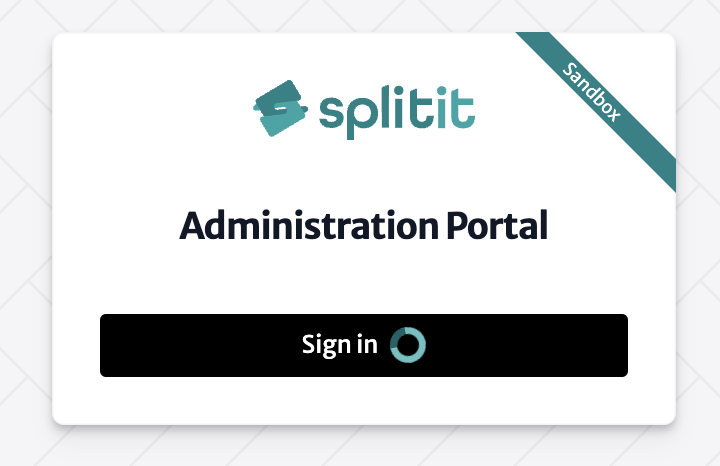
Click Sign in to be redirected to the login screen.
Login
On the Login screen, you can enter your email and password, use a passkey, or use your Google/Apple info to login.
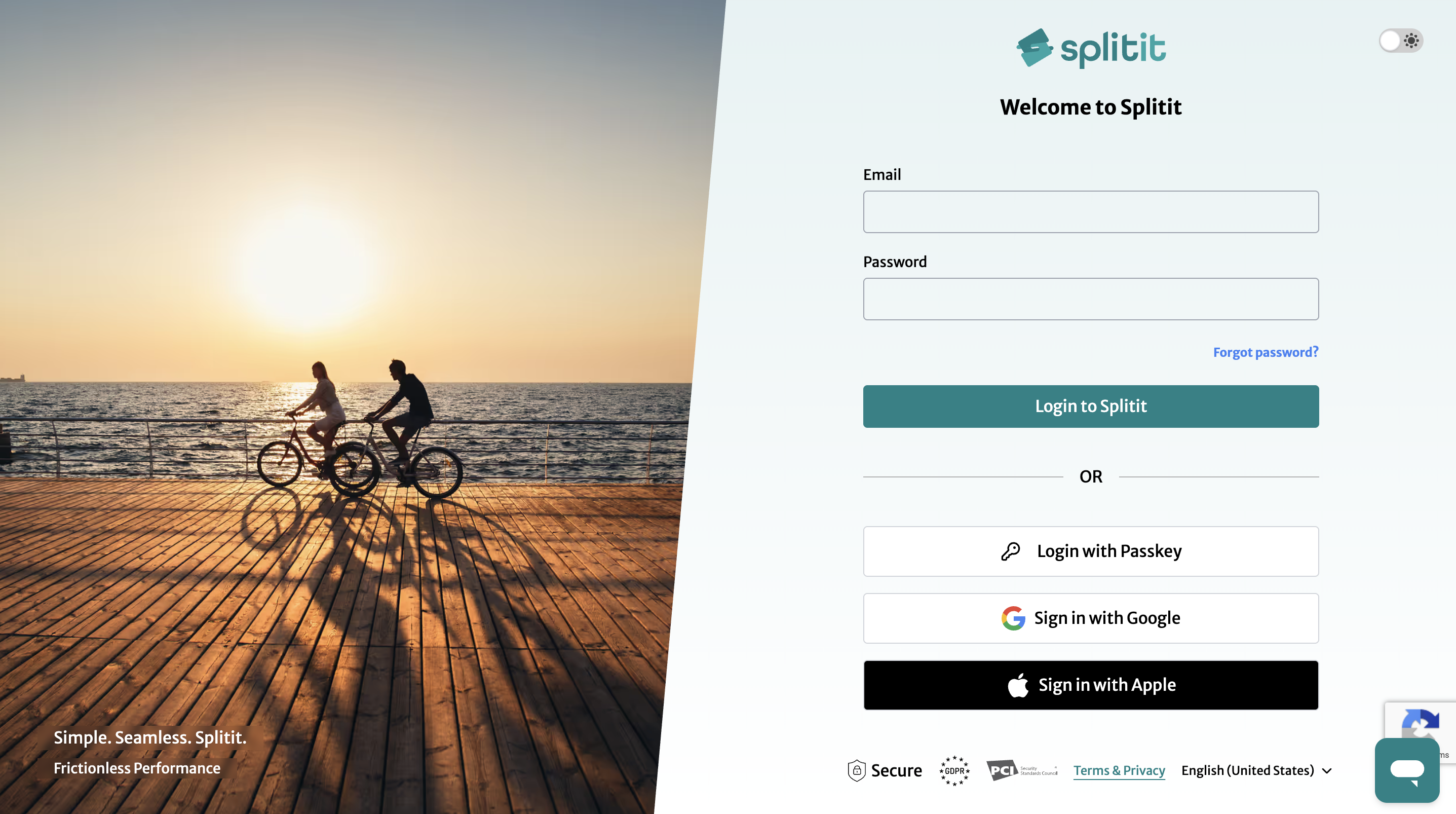
- Login with Email and Password
- Login with a Passkey
- Login with Google or Apple
You should have obtained a username and temporary password via email from Splitit in order to login. If this is the first time you are logging in, you will be asked to reset your password. The system will then log you into the Hub. If you have not yet received this information, please reach out to support@splitit.com.
Note that all users signing in with email and password need to enable multifactor authentication (MFA) by authenticator app (recommended), SMS, or email. Please see the Multifactor Authentication (MFA) section below.
Resetting Your Password
If you forget your username and/or password, follow the steps below:
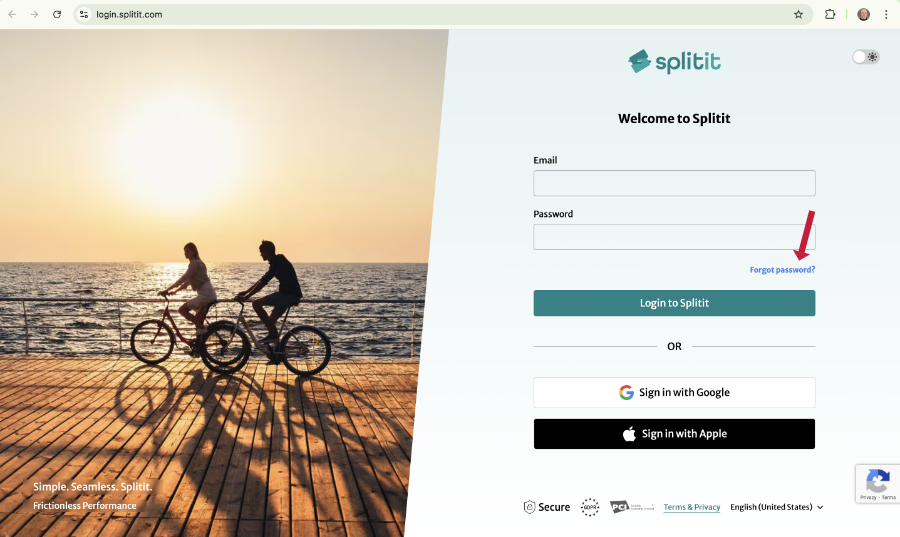
Step 1: Go to https://login.splitit.com and click the Forgot password? link at middle right.
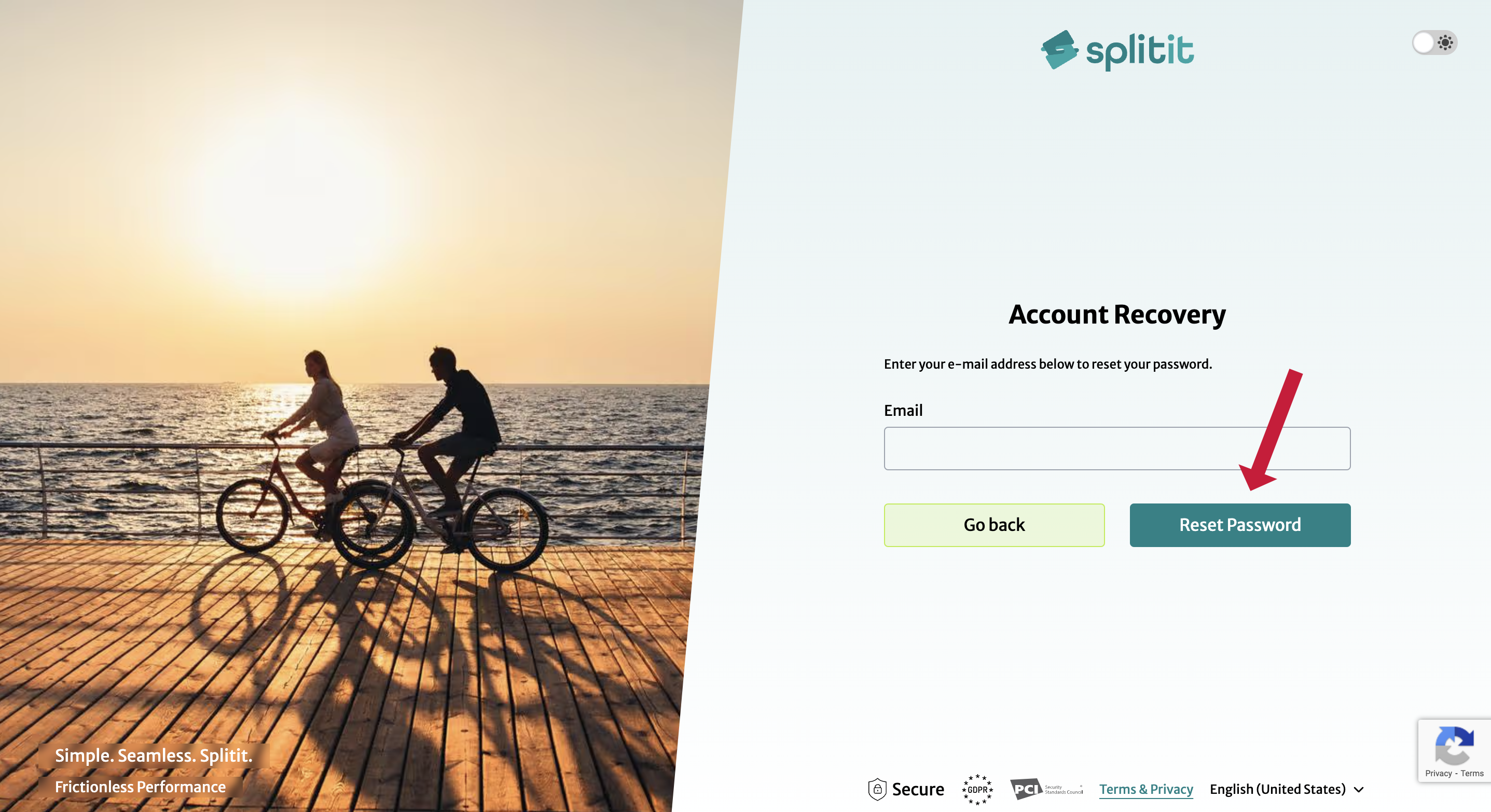
Step 2: Enter your email address and click Reset Password. If your email is in the system, you will be sent a reset email.
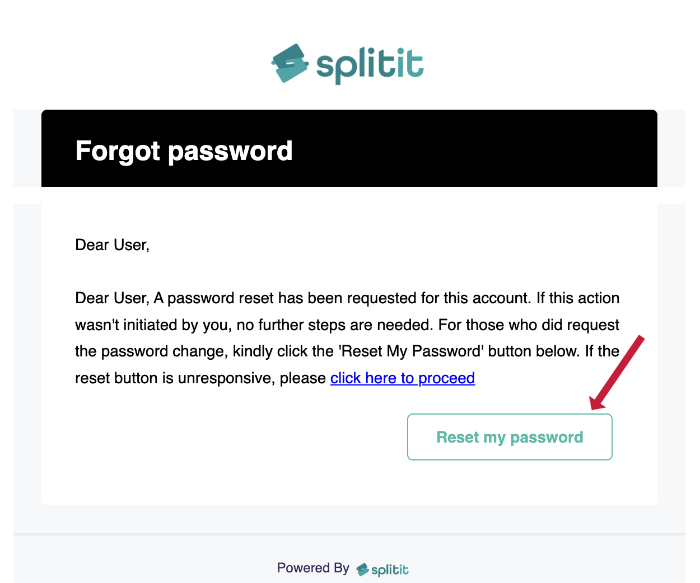
Step 3: Click the Reset my password link in the email you receive.
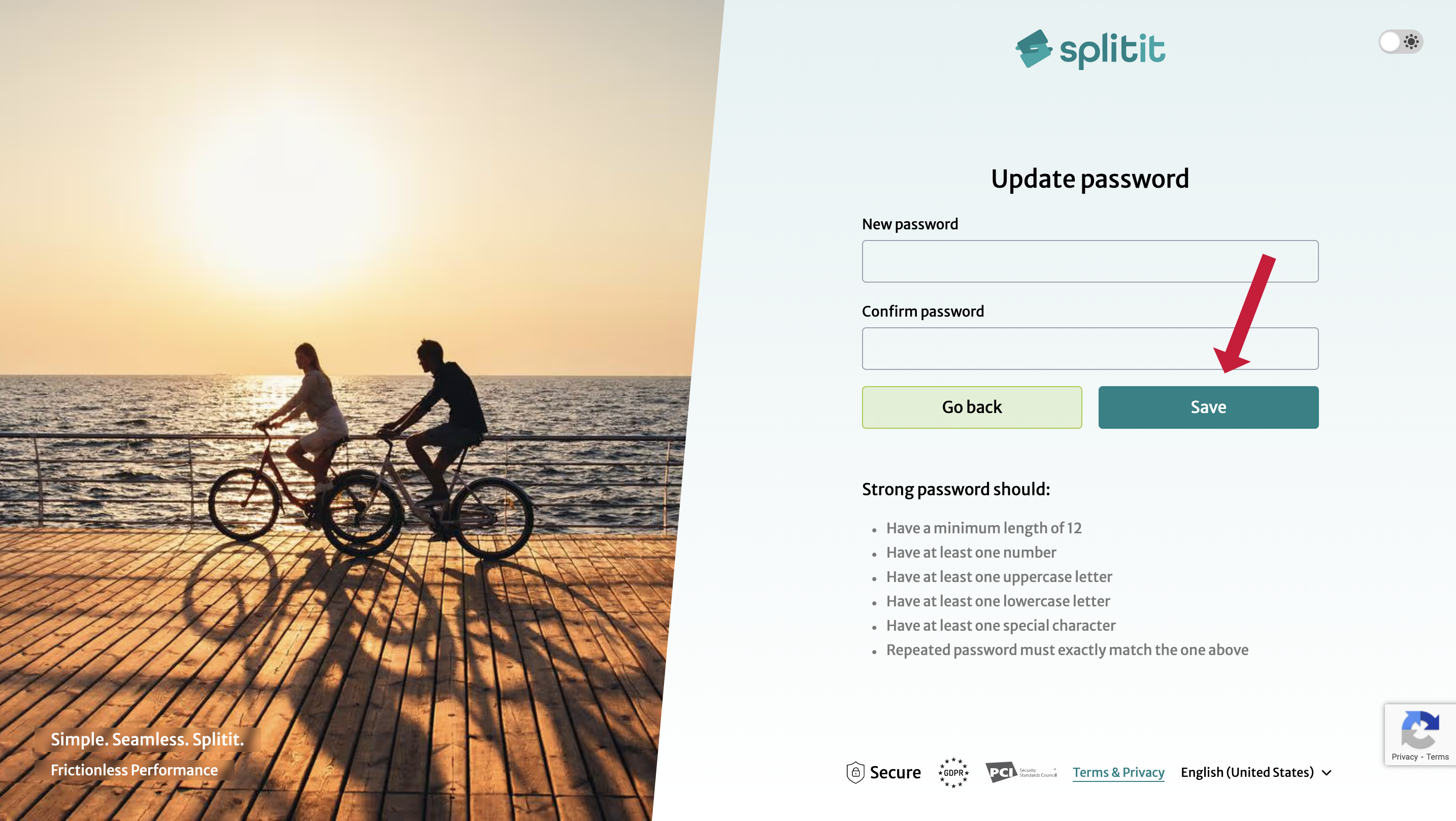
Step 4: Update your password according to the requirements and click Save.
Step 5: Return to https://hub.splitit.com to login.
To use a passkey for login, first you need to login with another method and set up a passkey in your account.
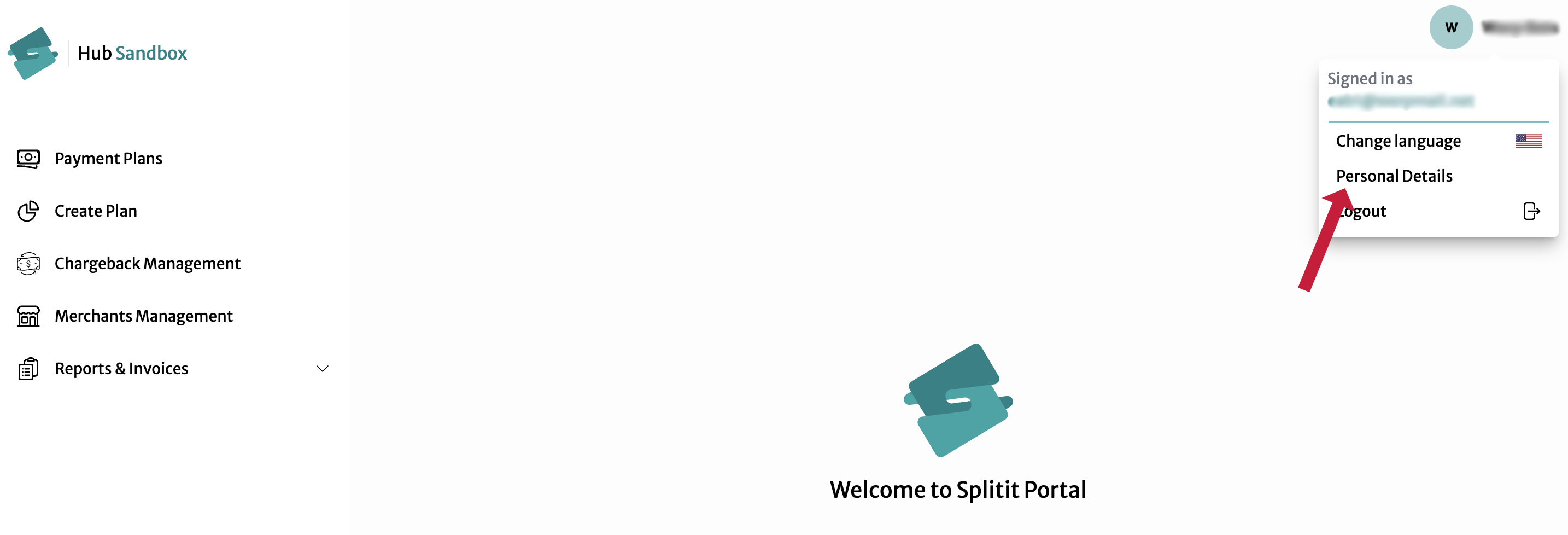
- Login into your account using email and password or Google/Apple authentication, then go to Personal Details on the dropdown menu under your Account ID at upper right:
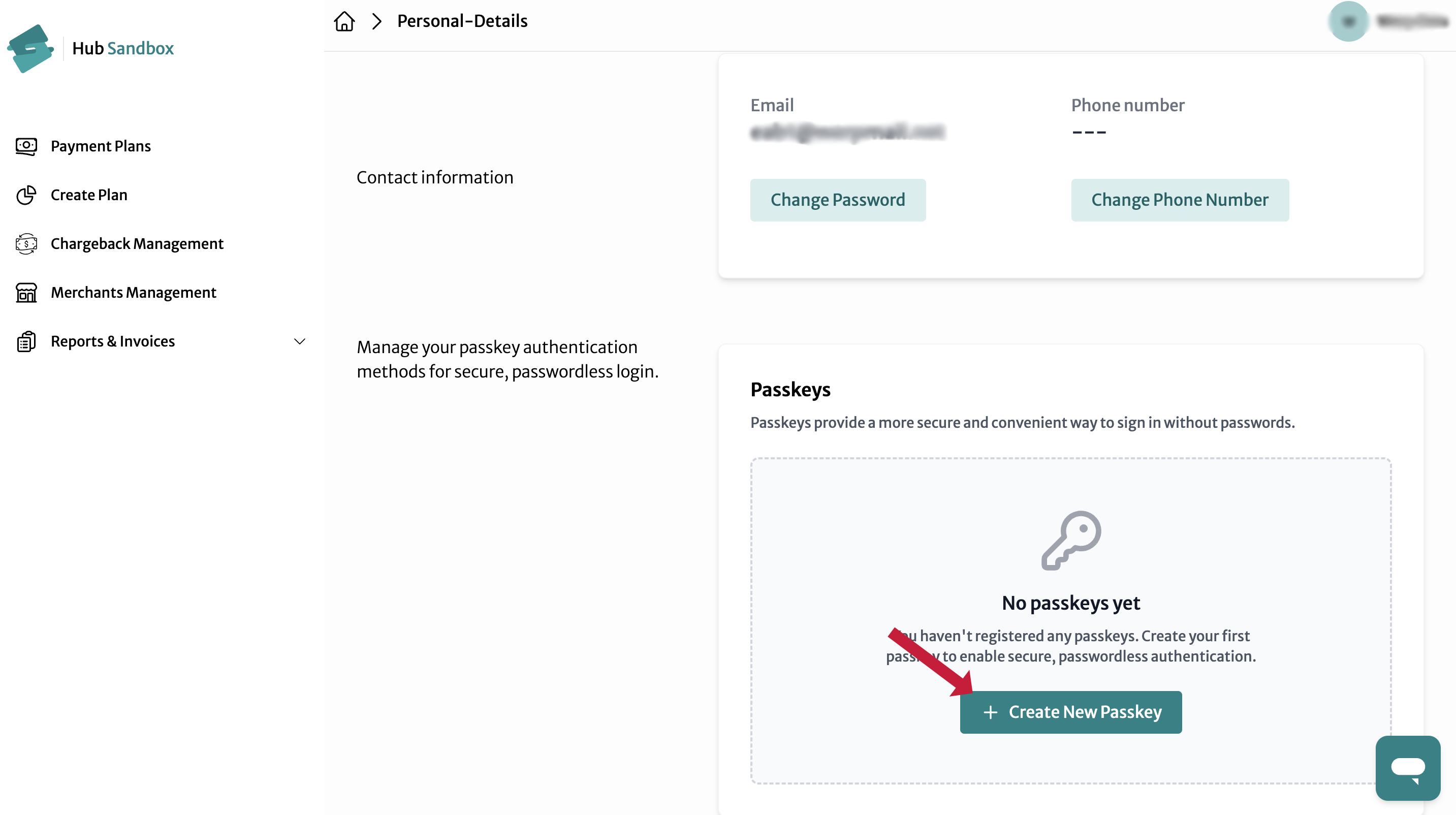
- Next click Create New Passkey:
- Select where you'd like to save your passkey, e.g., in a browser, in iCloud Keychain, on another device, etc.:
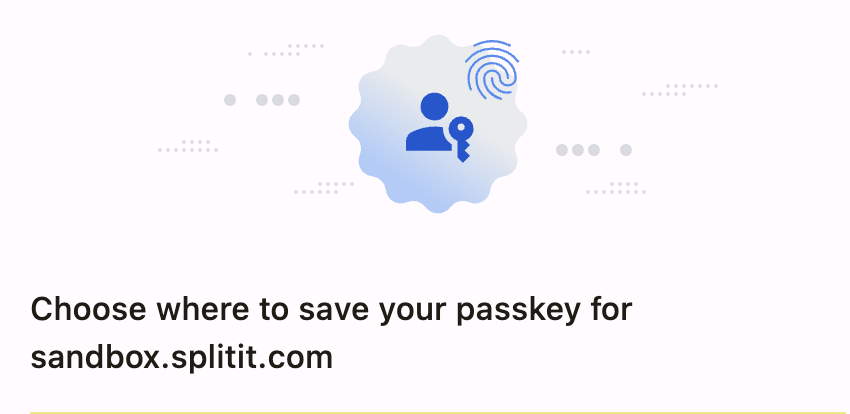
- Once successfully saved, you will be able to use your passkey the next time you login.
Click the appropriate button to be redirected to Google or Apple, respectively.
Multifactor Authentication (MFA)
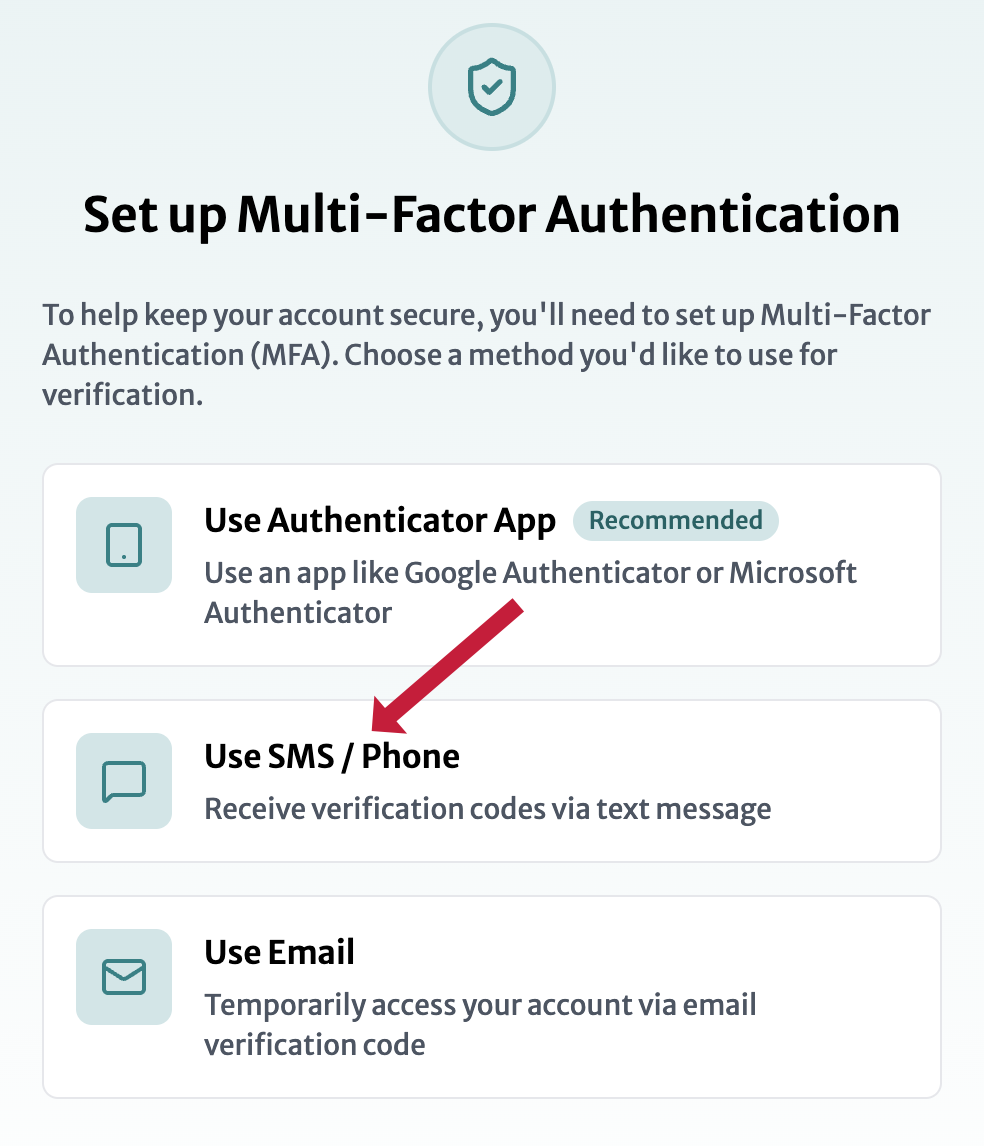
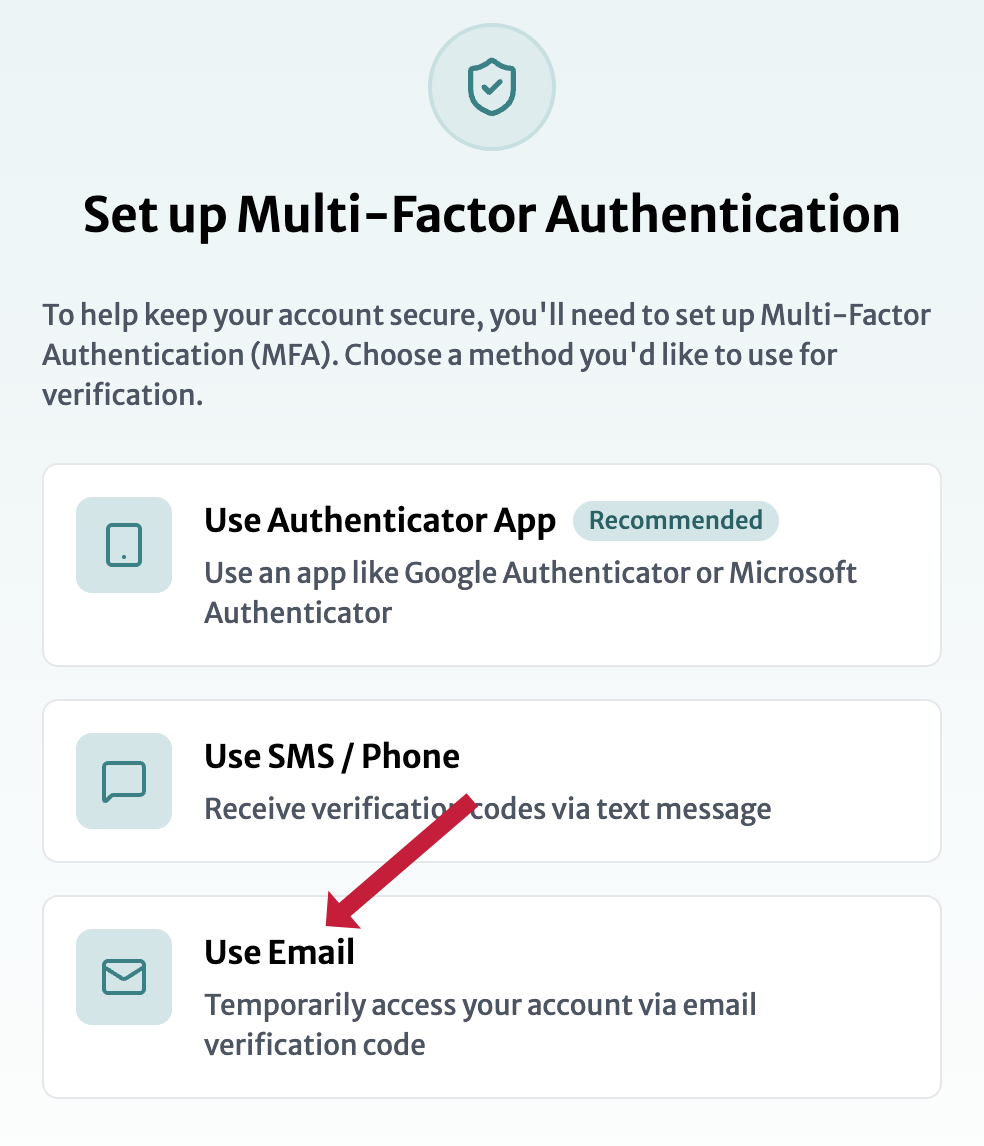
All users signing in with email and password (i.e., not Google/Apple or passkeys) are required to set up MFA upon first login. You will automatically be directed a page where you can choose your desired MFA type:
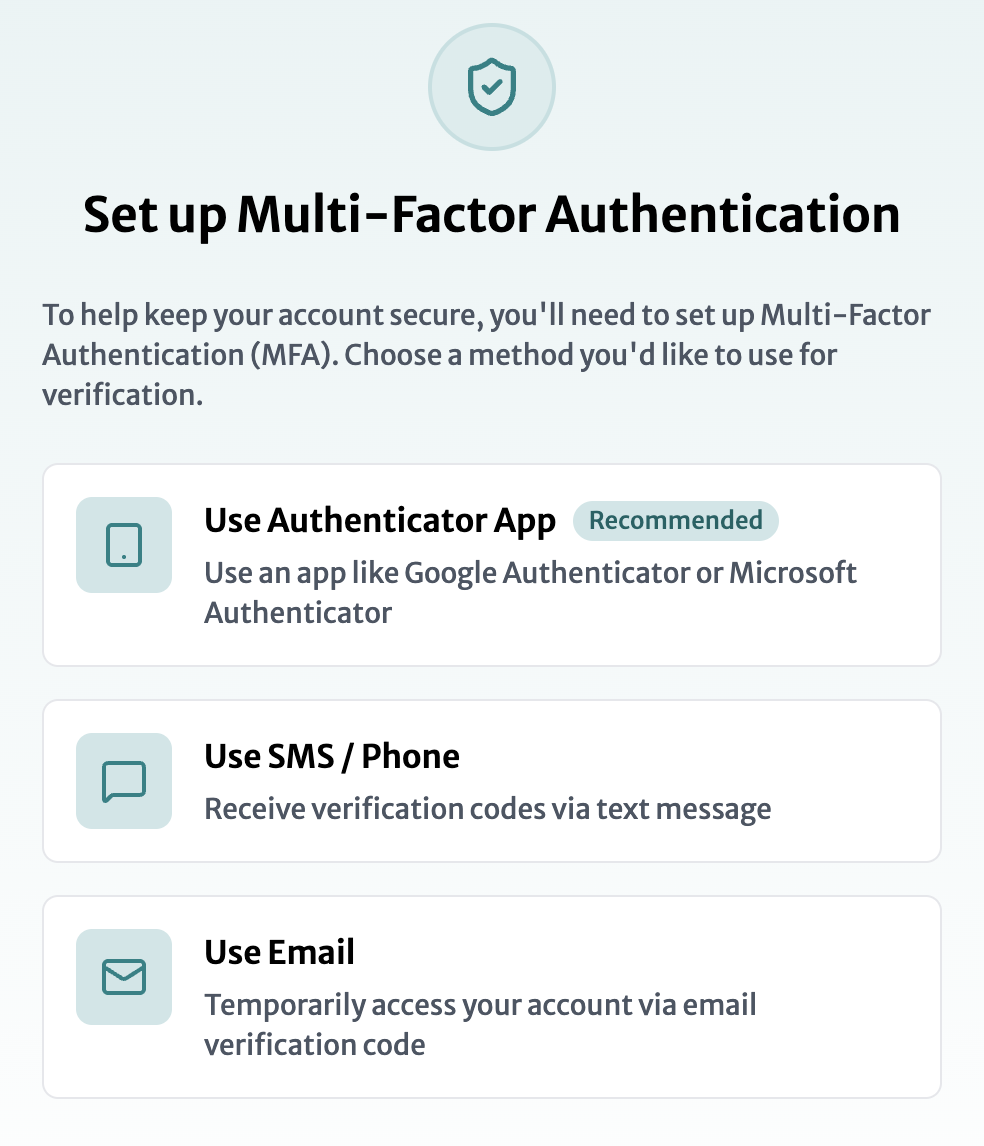
- Authenticator App (Recommended)
- SMS/Phone Verification
- Email Verification
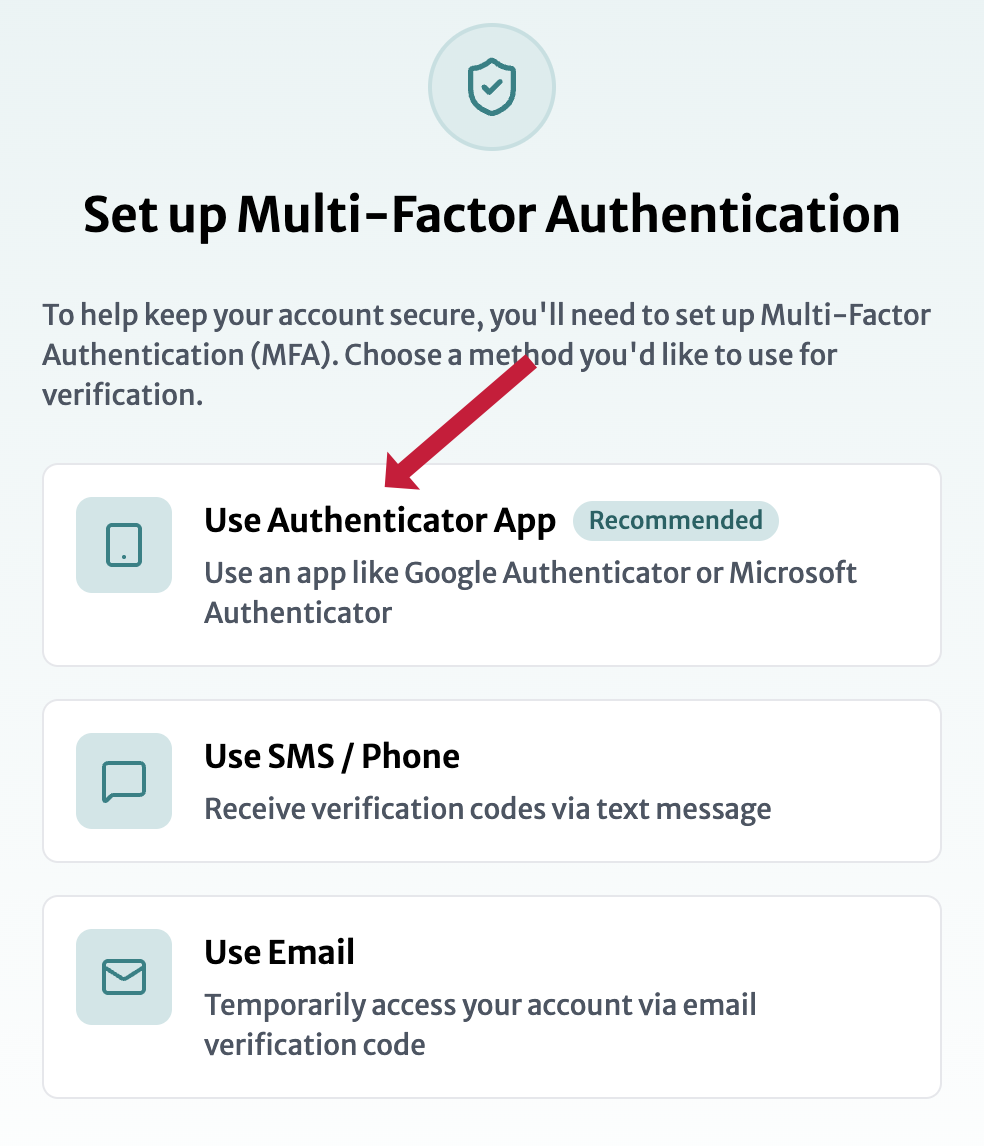
- Choose Use Authenticator App
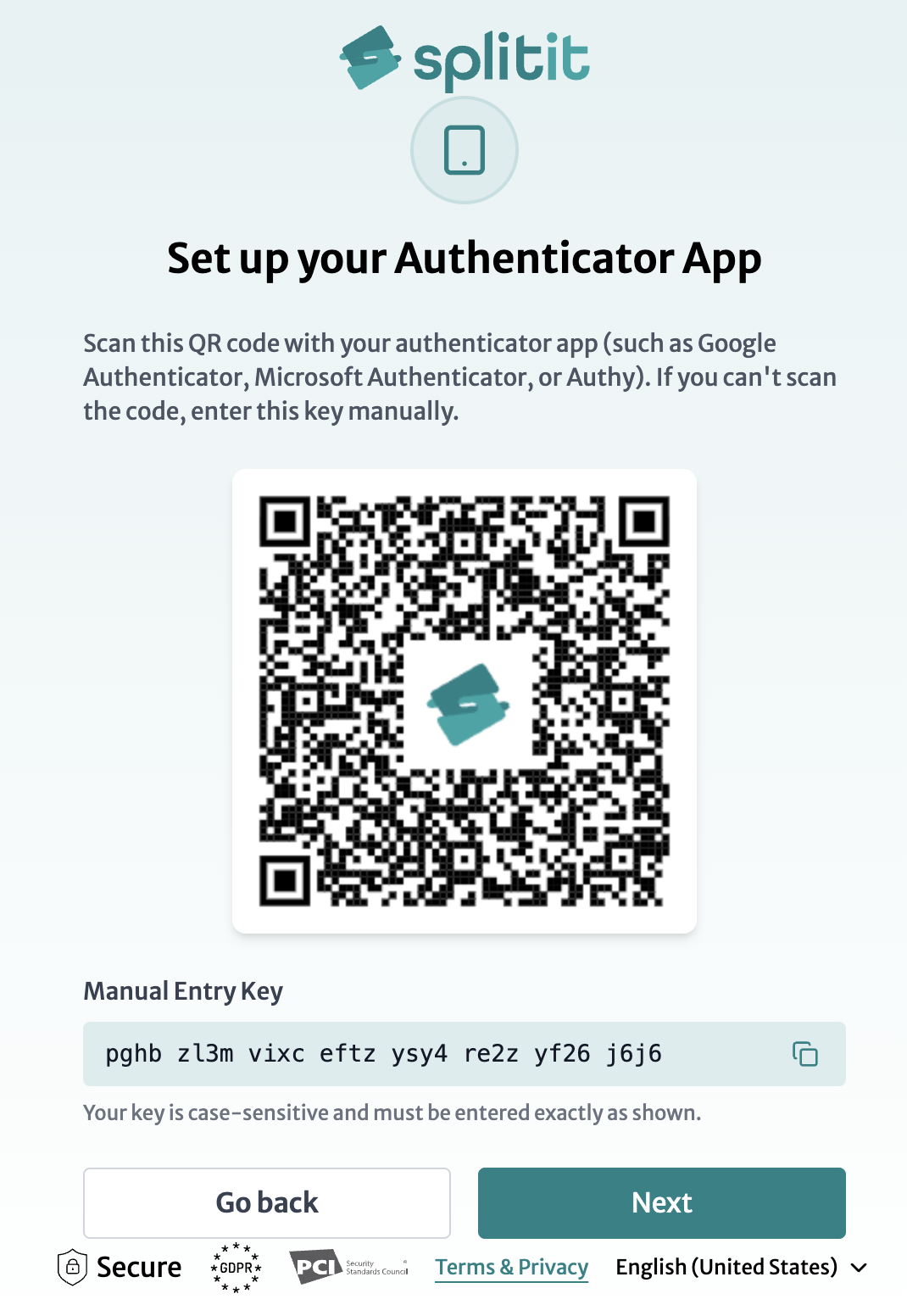
- Open an authenticator app (e.g., Google Authenticator, Passwords (Apple), Microsoft Authenticator, Authy, etc.) on your mobile device or desktop and either:
- scan the provided Splitit QR code
- enter the Manual Entry Key below the QR Code into your app
- upload an image of the QR code to your app
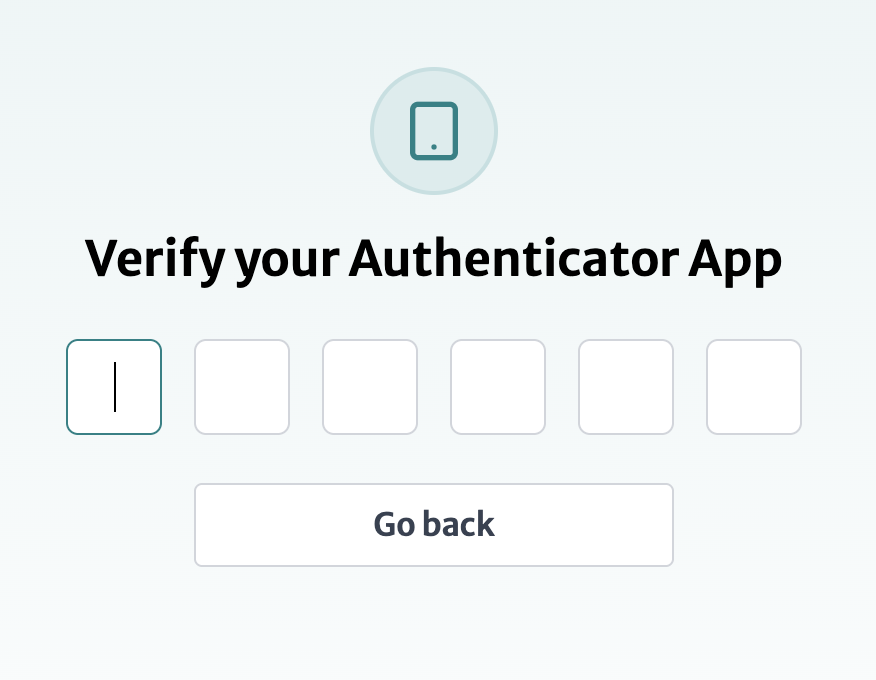
- Get a generated code from your app, then click Next to enter it:
- If the code is successful, you will receive a list of one-time recovery codes. Save these codes in a safe location (e.g., password manager, notes, secure file) by clicking copy. You will need them if you ever lose access to your authenticator app:
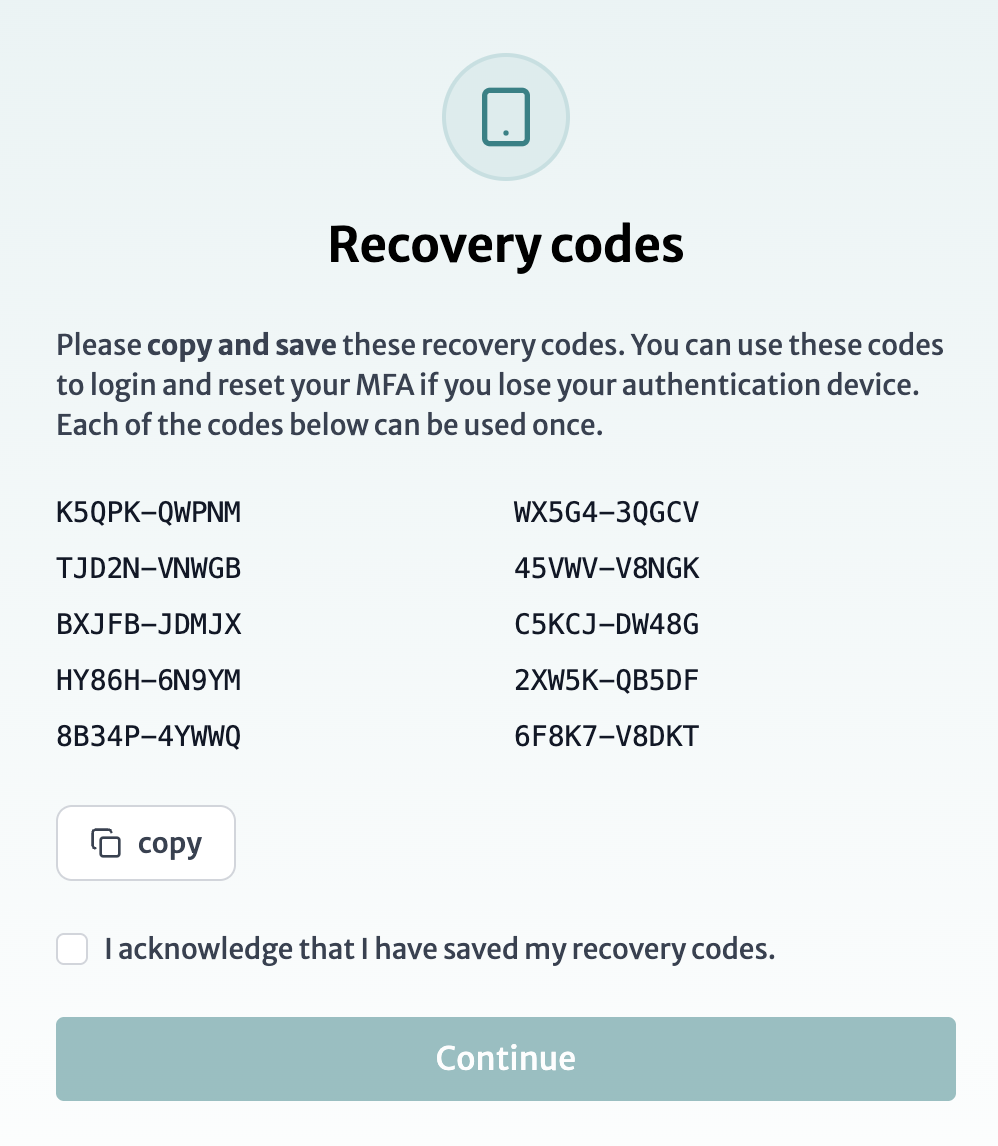
- Acknowledge that you have saved the codes, then click Continue
- Log back in by entering your email and password then providing a fresh generated code from your authenticator app
Using a Recovery Code
- To use a recovery code in the future, click Can't access my authenticator app on the screen where you're supposed to enter a code:
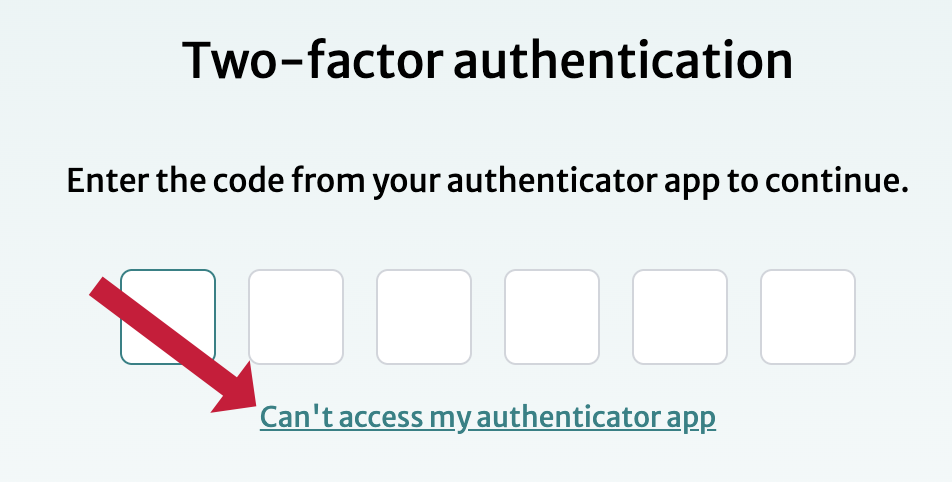
- Note that if you are completely locked out, i.e., you can't access your authenticator app and can't find your codes, you will have to contact Splitit support.
- Choose Use SMS/Phone
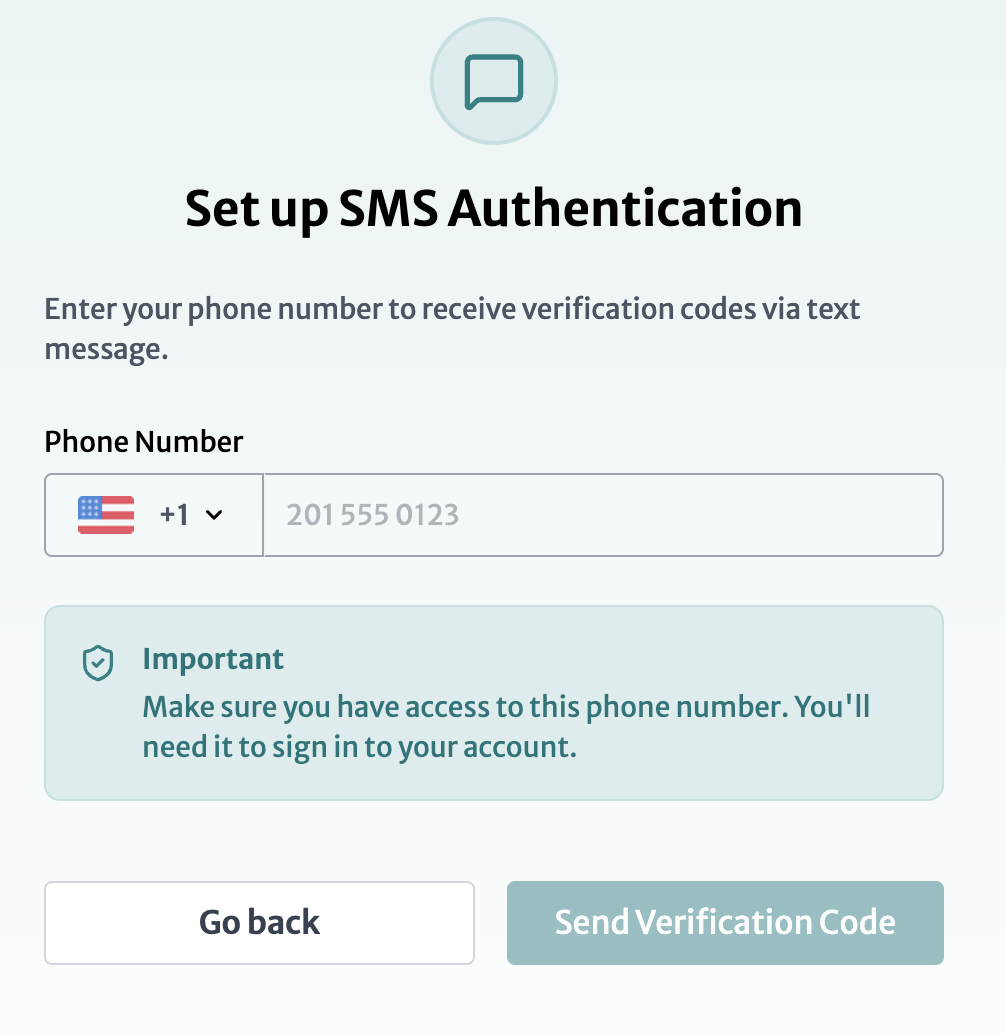
- Enter your phone number then click Send Verification Code
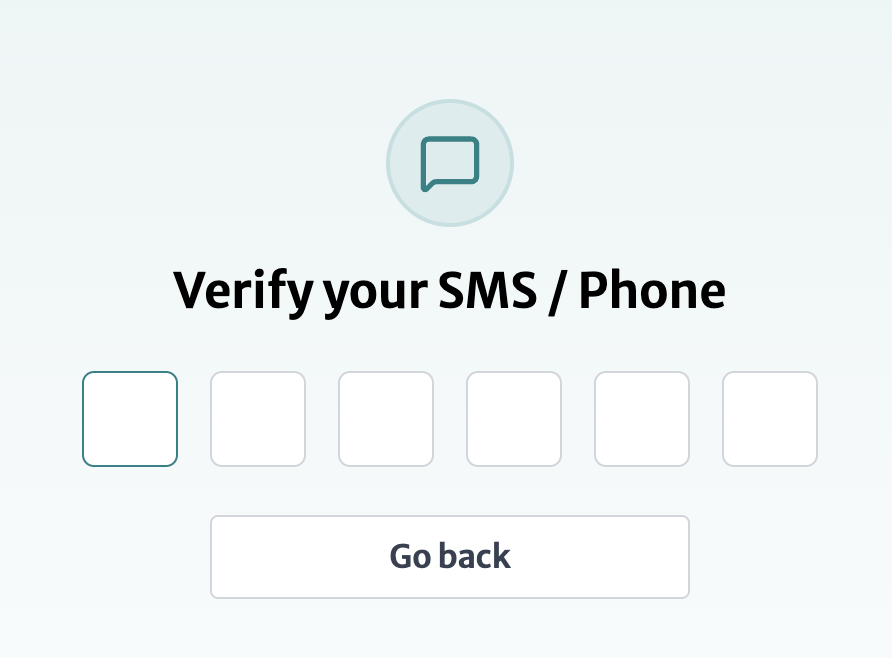
- Receive the code on your phone and enter it into the blank
Recovery
If you no longer have access to your phone number for recovery, please contact Splitit support.
- Choose Use Email
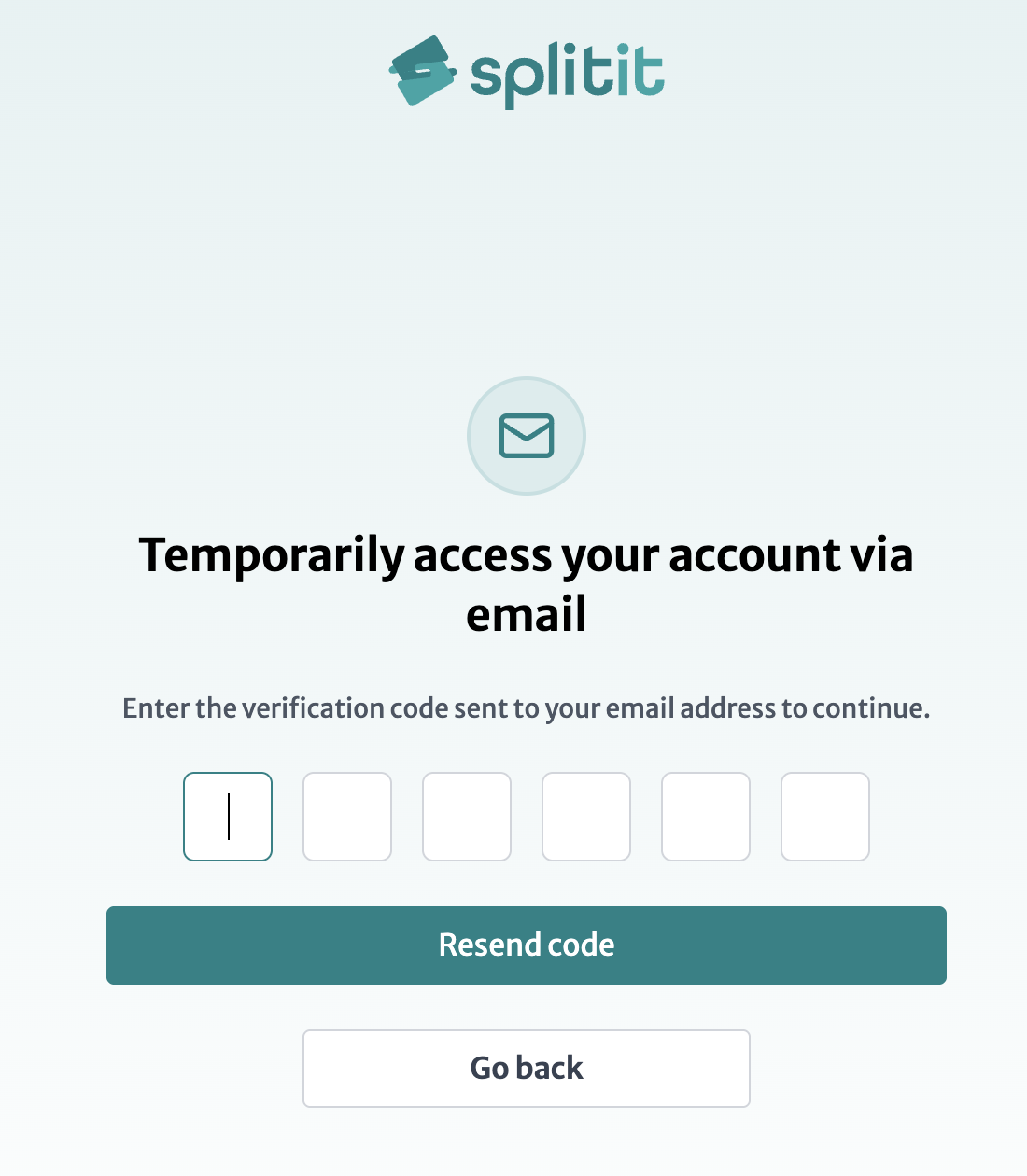
- You will receive a code in your email. Enter it in on the screen that appears:
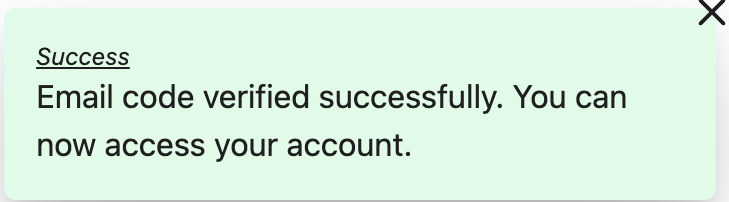
- You will get a success message and will be redirected to another screen:
Recovery
If you no longer have access to your email for recovery, please contact Splitit support.