Chargebacks Portal
The chargebacks portal in the Hub lets you view and/or process any chargebacks you may have. This document covers the layout and functionality of the portal. Before taking action on your chargeback, however, you should read the respective chargeback handling sections for your merchant type: Managed/MOR or Core. If you are unclear as to your merchant type, refer here or reach out to Splitit support.
Viewing All Chargebacks
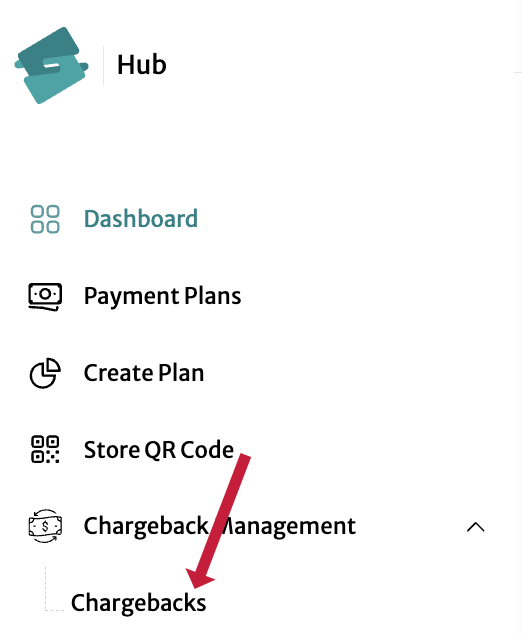
Access the Chargebacks Management page from the left-hand menu in your Splitit Hub.
In the resulting page, you will see a list of chargebacks associated with your merchant account showing Created Date, your Merchant Name, the Plan Number in question, the Installment Number in question, the overall Plan Amount (in the chargeback currency), the Shopper's Name, the Plan's Status, Splitit Reason Code, the chargeback's Due Date and its overall Status.

Filtering Chargebacks
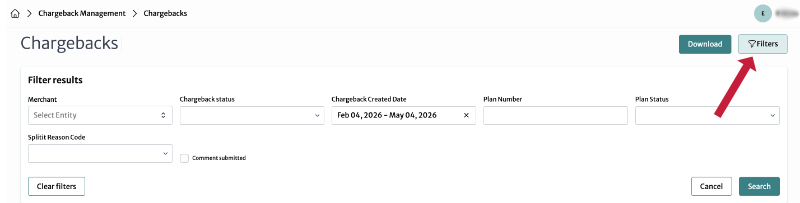
Click on the Filters button to bring up a dialogue where you can filter by Merchant, Chargeback status, Chargeback Created Date, Plan Number, Plan Status, or Splitit Reason Code. You can also Clear filters, Cancel, or Search:
Viewing Details for a Single Chargeback (Core Merchants)
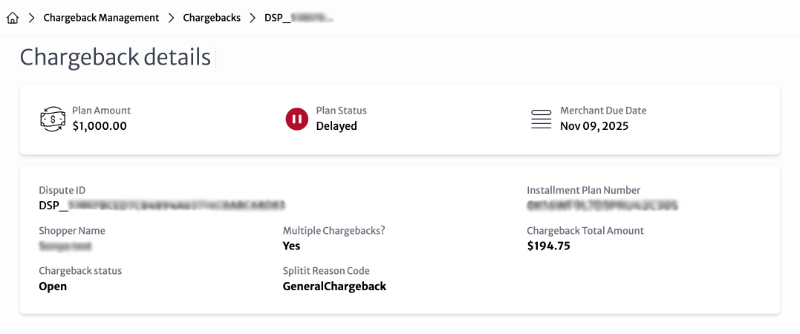
For Core merchants, clicking on any row in the main view (front page) of the Chargebacks section will bring up detailed information about the specific chargeback, including the Plan Amount, Plan Status, Merchant Due Date, Dispute ID, Installment Plan Number, Shopper Name, Chargeback Status, Splitit Reason Code and whether there are multiple chargebacks involved or not.
Viewing Details for a Single Chargeback (Managed/MOR Merchants)
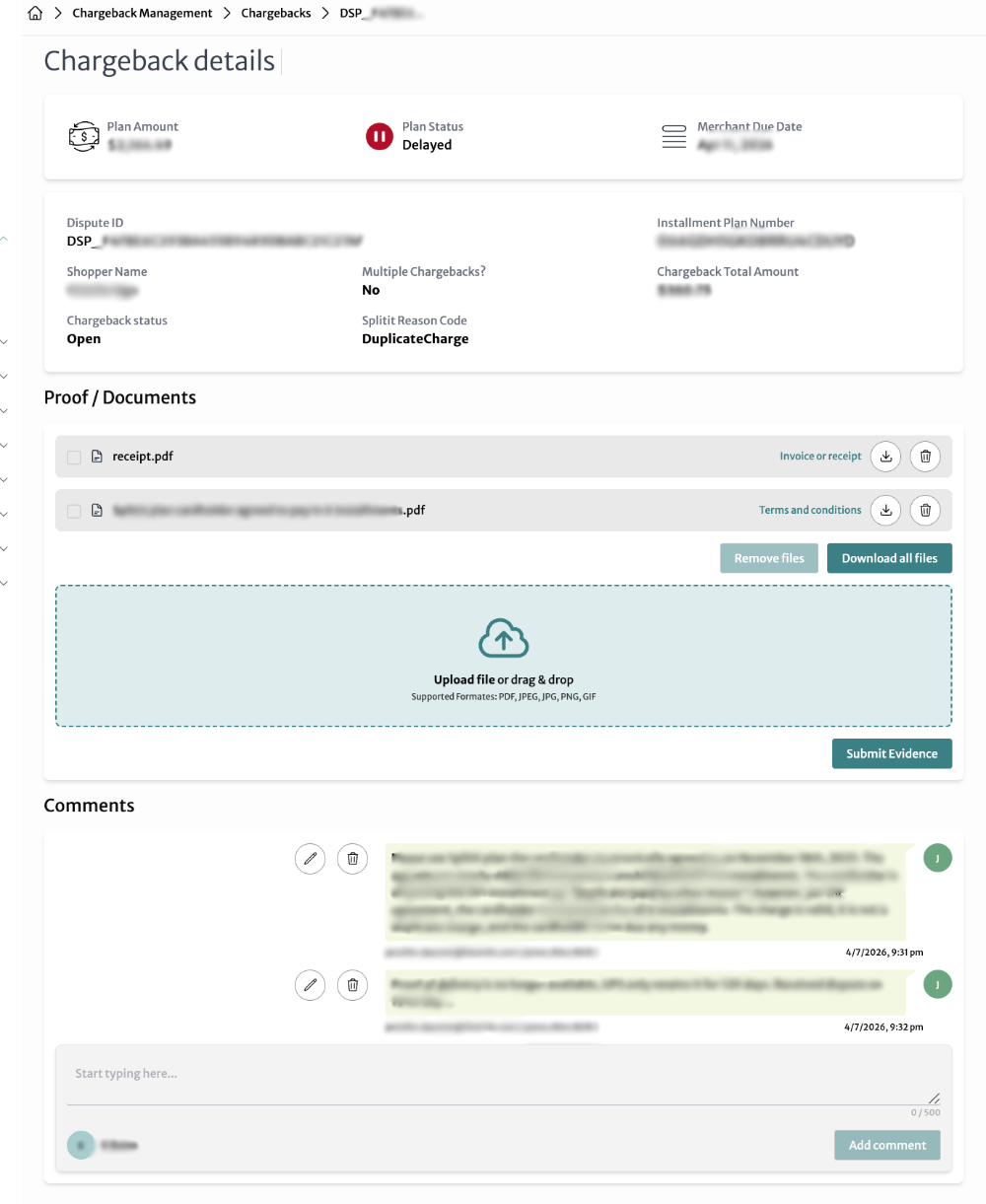
For Managed/MOR merchants, clicking on any row in the main view (front page) in the Chargebacks section will bring up detailed information about a specific chargeback, including the Plan Amount, Plan Status, Merchant Due Date, Dispute ID, Installment Plan Number, Shopper Name, Chargeback Status, Splitit Reason Code and whether there are multiple chargebacks involved or not. Additionally, because Managed/MOR merchants handle chargeback cases directly with Splitit, underneath the top section is a section to upload documents and also one to add comments.
Proof/Documents (Managed/MOR Merchants Only)
In the Proof/Documents section, you can see a list of documents uploaded as proof against the chargeback and you can also upload more documents. Supported formats include PDF, JPEG, JPG, PNG, and GIF.
Uploading Evidence
Upload a file by clicking and uploading, or dragging and dropping files into the upload area. Then choose the type of evidence it is:
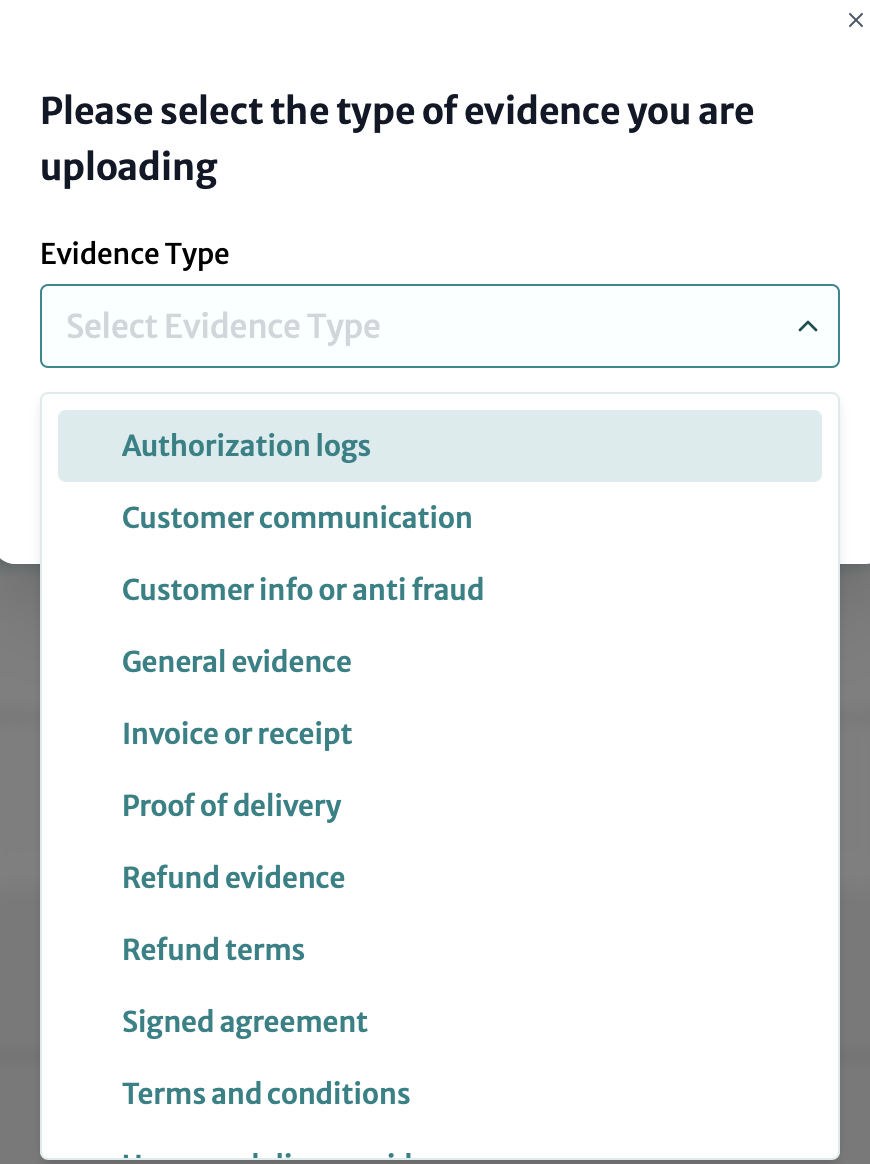
Once you have uploaded all of your files, click Submit Evidence (you can also download and delete added files with the icon, or Download All Files).
Note that if your initial plan status was Open, once you upload any evidence, it will change to Submitted. Please see Chargeback Statuses for more information.
Comments
In the Comments box, add comments related to the chargeback. Type your comment in the text box (up to 500 characters) and click Add comment.